Step 4: Configure Hub and Spoke Routers
This step configures both hub and spoke routers on the conductor. You will first update the authority-level objects to support hub and spoke tenants, then configure each router's WAN interface, LAN interface, and service routes. The hub router provides direct internet breakout; the spoke router routes internet traffic to the hub over an SVR peer path.
All steps are performed from the Conductor GUI at https://<conductor-public-ip> unless otherwise noted.
If you prefer to apply configuration using the PCLI, the complete example configuration is available in the Appendix.
Part 1: Update Authority-Level Configuration
The conductor must have the correct tenants and services configured before either router is activated. If you already completed the Azure Conductor Deployment Guide and created a corp tenant and Internet-Traffic service, you can either rename those objects or create new ones as described below. This guide uses separate tenants for hub and spoke users.
Your conductor must already have an authority name and conductor address set. If these are not yet configured, complete steps 1–3 of Configure the Conductor before continuing.
1. Create the Hub Tenant
The hub-corp tenant represents users on the hub router's LAN.
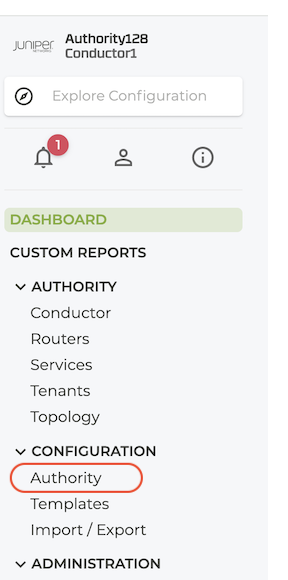
- Under Configuration in the left panel, select Authority.
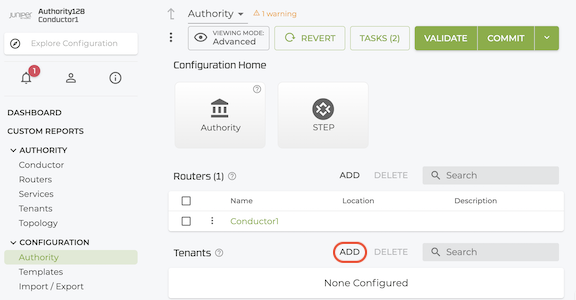
- Scroll to Tenants and select ADD.
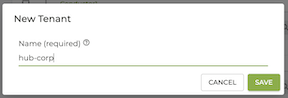
- Enter the name
hub-corpand select SAVE.
- Select VALIDATE then COMMIT.
2. Create the Spoke Tenant
The spoke-corp tenant represents users on the spoke router's LAN.
- Return to Tenants (click the up arrow next to Tenant) and select ADD.
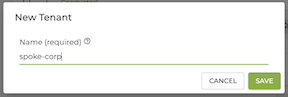
- Enter the name
spoke-corpand select SAVE.
- Select VALIDATE then COMMIT.
3. Create or Update the Internet-Traffic Service
The Internet-Traffic service matches all internet-bound traffic. Both tenants must be granted access so the hub can forward internet traffic for both hub LAN users and spoke LAN users arriving over SVR.
- Under Configuration in the left panel, select Authority.
- Scroll to Services and select ADD (or select the existing
Internet-Trafficservice if it already exists).
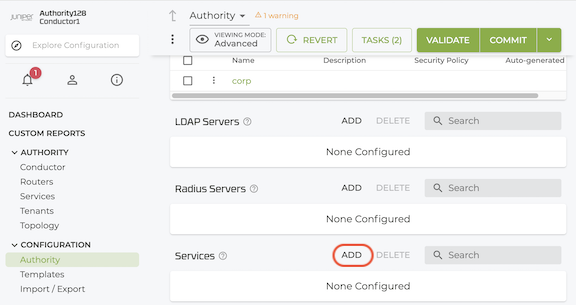
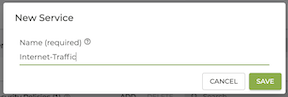
- Enter the name
Internet-Trafficand select SAVE.
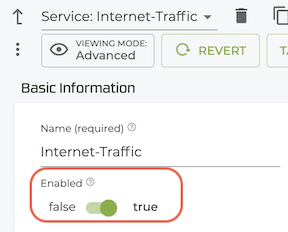
- Verify Enabled is set to
true.
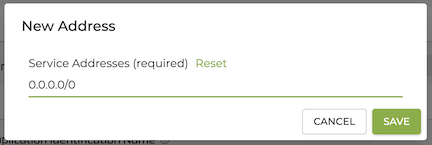
- Scroll to Service Addresses and select ADD.
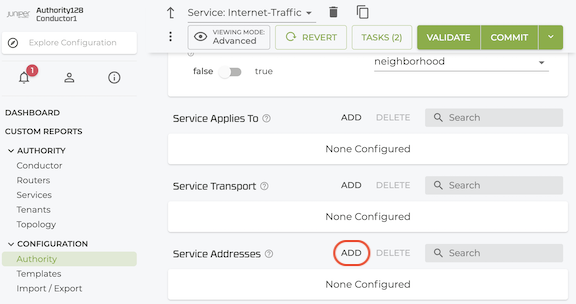
- Enter
0.0.0.0/0and select SAVE.
-
In the Access Policy field, add two entries:
Scroll to Access Policy and select ADD.

-
In the New Access Policy window, add Source:
hub-corpand select SAVE.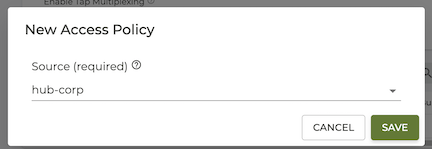
-
Click the up arrow next to Access Policy.
-
Select ADD.
-
In the New Access Policy window, add Source:
spoke-corpand select SAVE.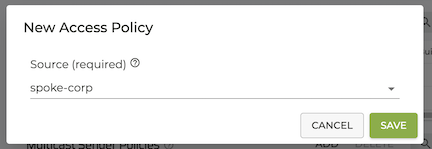
-
-
Select VALIDATE then COMMIT.
The spoke-corp access policy on the Internet-Traffic service allows traffic from spoke LAN users to be forwarded by the hub router when it arrives over the SVR peer path. Without this policy, the hub drops spoke-originated internet traffic.
Part 2: Configure the Hub Router
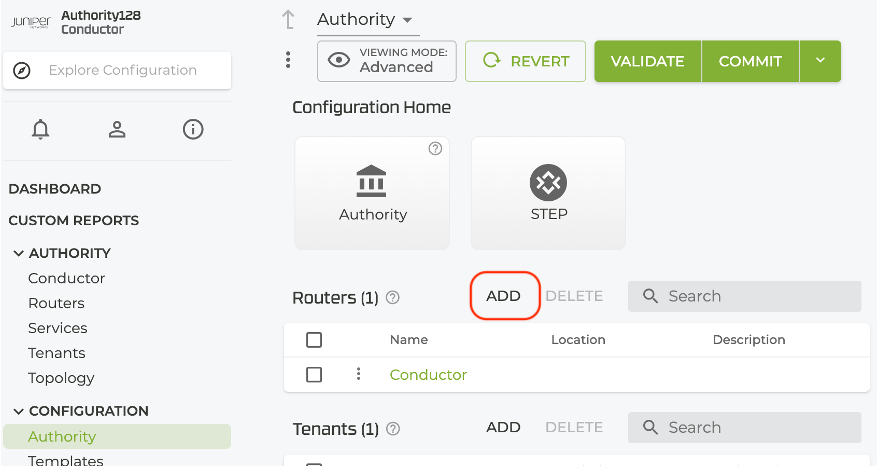
Add the Hub Router to the Authority
-
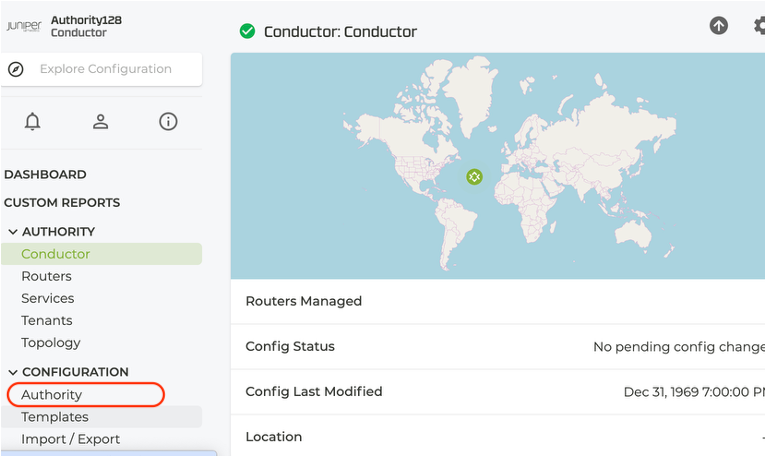
In the Conductor GUI, click on Authority.
-
At the top of the list of Routers, select ADD.
-
Enter the router
azure-hub-routerand click Save.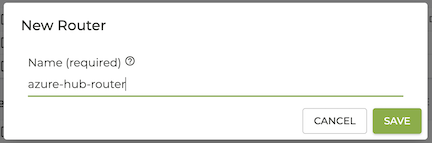
-
In the Basic Information screen, under Inter-node Security Policy, select
Internal. -
Below the Basic Info screen, click ADD next to Nodes.
-
The New Node dialog is displayed - enter
node0.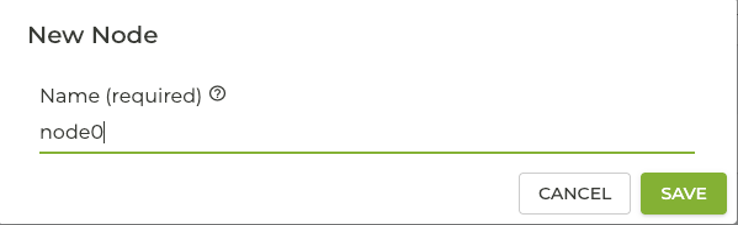
-
Click Save. The Node screen appears.
Assign the Hub Router's Asset ID
The Asset ID allows the hub and conductor to fully connect, and allows the conductor to configure and control the hub router.
On the Node screen:
-
Under Associated Asset ID, select the asset ID reported by the hub router VM.
-
Set the Role to
Combo.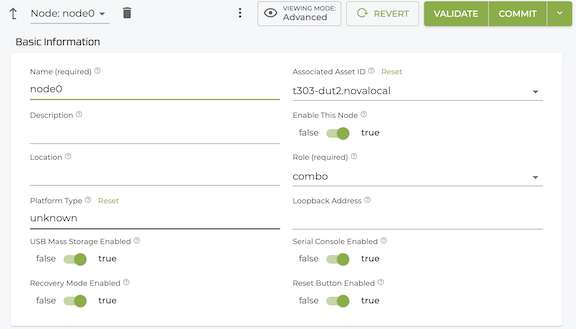
Select VALIDATE then COMMIT.
1. Configure the Hub WAN Interface
The WAN interface ge-0-0 / ssr-hub-wan) connects to the internet, obtains a DHCP address, and carries both internet forwarding and conductor management traffic. The neighborhood topology is set to hub, which makes this router the internet gateway for spoke routers in the same neighborhood.
1a. Create the Hub WAN Device Interface
-
In the Conductor GUI, navigate to the
azure-hub-routerrouter, then to nodenode0. -
Scroll to Device Interfaces and select ADD.
-
Enter the name
wan-devand select SAVE.noteTo ensure successful onboarding, the
ge-0-0interface MUST be configured as the WAN device interface.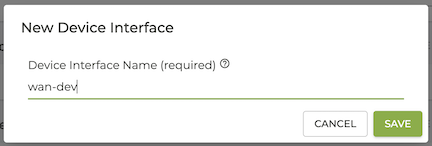
-
In the Device Interface window, set the type to
ethernet. When the Identifier field becomes visible, select VMBus UUID from the dropdown, and then enter the ID discovered in Step 3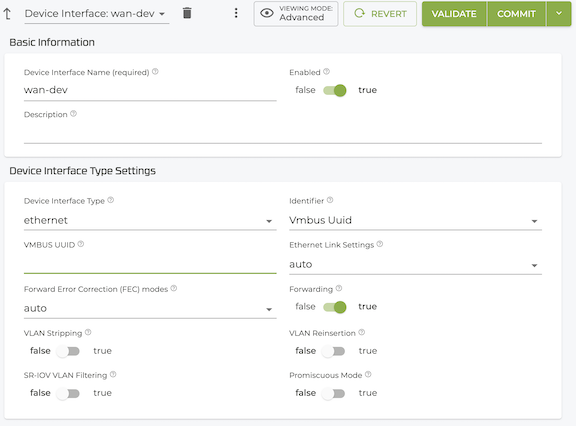
1b. Create the Hub WAN Network Interface
-
Under the WAN Device Interface, scroll to Network Interfaces and select ADD.
-
Enter the name
wan1and select SAVE.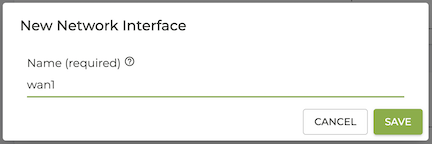
-
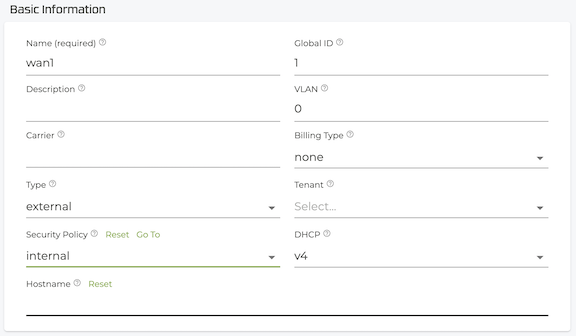
On the Basic Information screen, set the following fields:
- Global-ID:
1 - Type:
external - DHCP:
v4- Azure assigns an IP via DHCP - Security Policy: internal
- Global-ID:
-
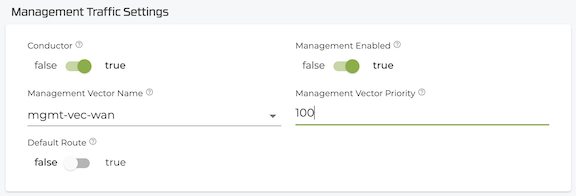
Scroll to Management Traffic Settings and set:
- Conductor:
true- Marks the interface for conductor connectivity - Management Enabled:
true- Enables management over forwarding - Management Vector Name:
mgmt-vec-wan - Management Vector Priority:
100 - Default Route:
true- Linux uses this interface as its default route
- Conductor:
-
Scroll down to Network Interface settings, and set Source NAT to
true. This is required for management over forwarding.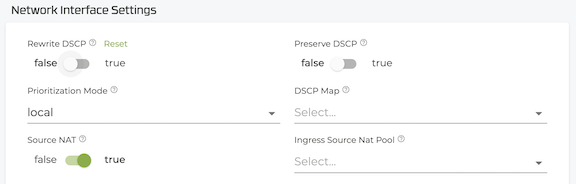
-
Scroll to Neighborhoods and select ADD.
- Enter neighborhood name
internet.
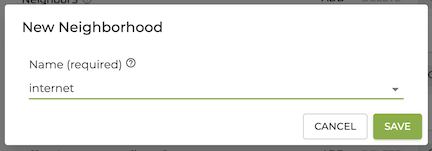
- Select SAVE.
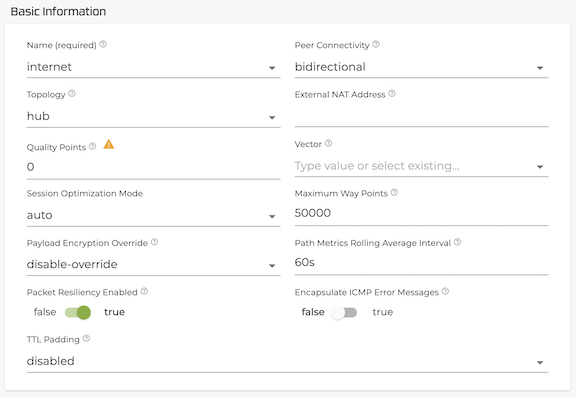
- Verify Topology is set to
hub.
- Enter neighborhood name
Setting Topology to hub on the hub router's neighborhood is what distinguishes it from a spoke. The conductor uses this topology to auto-generate adjacencies between the hub and any spoke routers that share the same neighborhood name with topology spoke.
Conductor, Source NAT, and Default Route must all be true on the WAN management interface. Management traffic originates from the 169.254.x.x range and must be source-NAT'd to a routable address before leaving the interface.
2. Configure the Hub LAN Interface
The LAN interface (ge-0-1 / ssr-hub-lan) connects to the hub private subnet and assigns the hub-corp tenant to inbound traffic.
2a. Create the Hub LAN Device Interface
-
In the Conductor GUI, navigate to the
azure-hub-routerrouter, then to nodenode0. -
Scroll down to Device Interfaces and select ADD.
-
Enter the name
lan-devand select SAVE. This adds a physical device name for you to assign your LAN interface.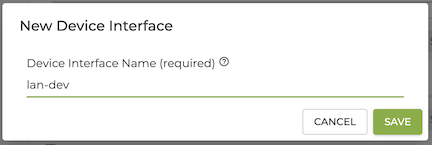
-
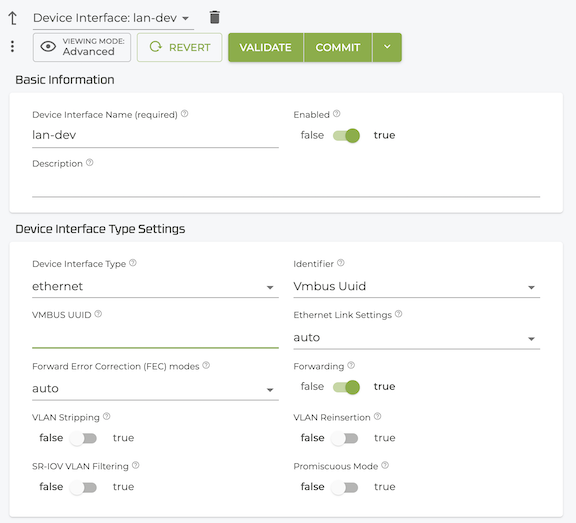
In the Device Interface Type Settings window, set the type to
ethernet. When the Identifier field becomes visible, select VMBus UUID from the dropdown, and then enter the ID discovered in Step 3. Set Forwarding totrue.
2b. Create the Hub LAN Network Interface
-
Under the LAN Device Interface, scroll down to Network Interfaces and select ADD.

-
Enter the name
lan1and select SAVE.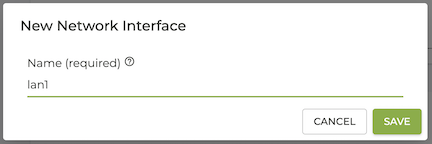
-
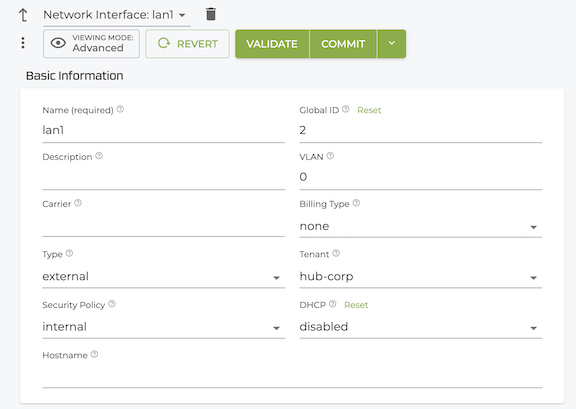
On the Basic Information screen, set the following fields:
- Type:
external - Global-ID:
2 - DHCP:
disabled - Tenant:
hub-corp- Assigns all inbound LAN traffic to the hub-corp tenant - Security Policy:
internal
- Type:
-
Scroll down to Network Interface settings, and set Source NAT to
true. -
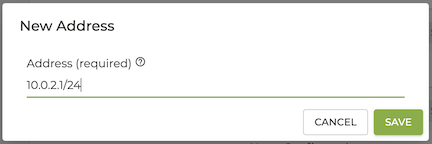
Scroll to Interface Addresses and select ADD.

-
Enter the following IP address and prefix.
- IP Address:
10.0.2.1 - Prefix Length:
24
- IP Address:
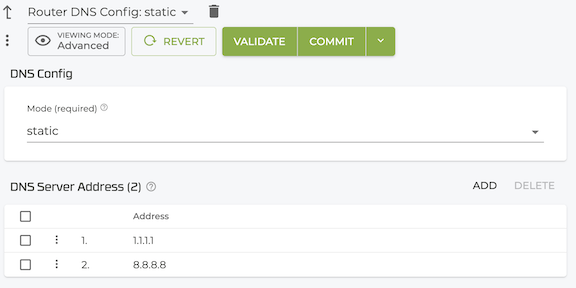
3. Configure Hub DNS
Configure DNS so the hub router can resolve FQDNs for conductor connectivity and software downloads.
- Return to the Router level for
azure-hub-router. You can either click the up arrow at the top of the screen until you reach theazure-hub-routerlevel, or select the down arrow to the right of the Network Interface heading and select theazure-hub-router.
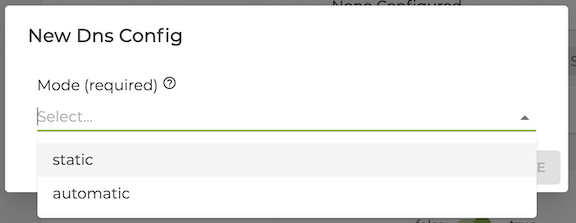
- Scroll to DNS Config and select ADD.

- In the New DNS Config window, use the Mode dropdown to set the mode to Static, and click SAVE.
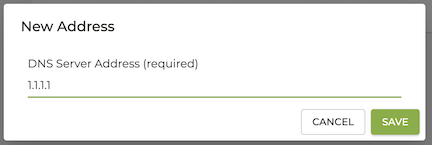
- In the DNS Server Address section, click ADD.
- Enter 1.1.1.1 and click SAVE.
- Click ADD again.
- Enter 8.8.8.8 and click SAVE.
4. Create the Hub Internet Service Route
The hub routes internet-bound traffic (from both its own LAN users and spoke users arriving over SVR) directly out through its WAN interface.
- Return to the Router level for
azure-hub-router. - Scroll down to Service Routes and select ADD.
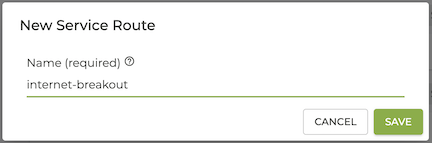
- Enter the name
internet-breakoutand select SAVE.
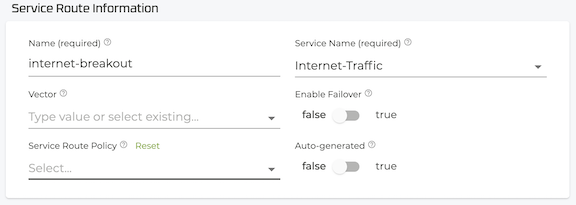
- Under Service Route Information, set the Service Name to
Internet-Traffic
- Under Service Route Type, select Service Agent from the Type dropdown.

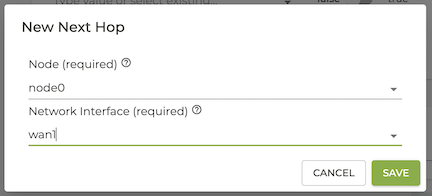
- Scroll to Next Hops and select ADD.
- Node Name:
node0 - Interface:
wan1
- Node Name:
- Select SAVE.
- Select VALIDATE then COMMIT.
Part 3: Configure the Spoke Router
Add the Spoke Router to the Authority
-
In the Conductor GUI, click on Authority.
-
At the top of the list of Routers, select ADD.
-
Enter the router
azure-spoke-routerand click Save.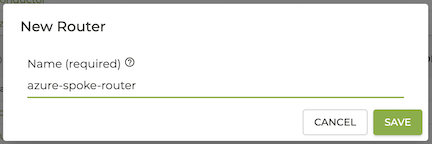
-
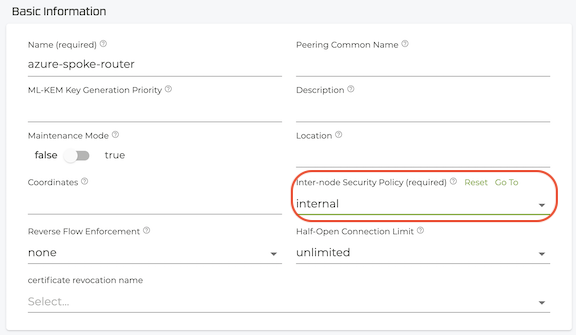
In the Basic Information screen, under Inter-node Security Policy, select
Internal.
-
Below the Basic Info screen, click ADD next to Nodes.
-
The New Node dialog is displayed - enter
node0. -
Click Save. The Node screen appears.
Assign the Spoke Router's Asset ID
The Asset ID allows the hub and conductor to fully connect, and allows the conductor to configure and control the hub router.
On the Node screen:
-
Under Associated Asset ID, select the asset ID reported by the spoke router VM.
-
Set the Role to
Combo.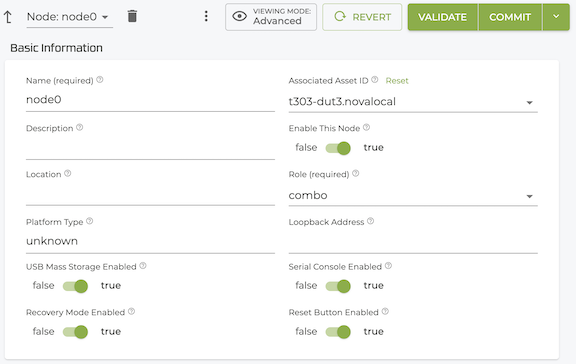
Select VALIDATE then COMMIT.
1. Configure the Spoke WAN Interface
The spoke WAN interface (ge-0-0 / ssr-spoke-wan) connects to the internet and carries both conductor management traffic and the SVR underlay path to the hub router. The neighborhood topology is set to spoke.
1a. Create the Spoke WAN Device Interface
-
Navigate to the
azure-spoke-routerrouter, then to nodenode0. -
Scroll to Device Interfaces and select ADD.
-
Enter the name
wan-devand select SAVE. -
In the Device Interface window, set the type to
ethernet. When the Identifier field becomes visible, select VMBus UUID from the dropdown, and then enter the ID discovered in Step 3
1b. Create the Spoke WAN Network Interface
-
Under the WAN Device Interface, scroll to Network Interfaces and select ADD.
-
Enter the name
wan1and select SAVE. -
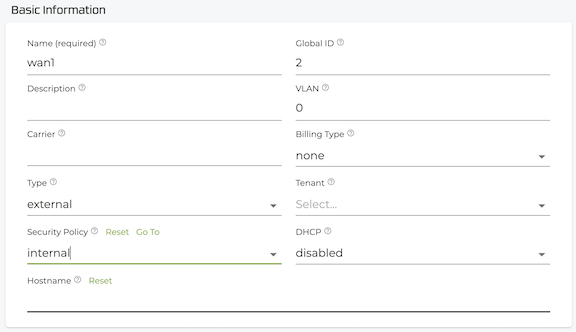
On the Basic Information screen, set the following fields:
- Global-ID:
2 - Type:
external - DHCP:
v4- Azure assigns an IP via DHCP - Security Policy: internal
- Global-ID:
-
Scroll to Management Traffic Settings and set:
- Conductor:
true- Marks the interface for conductor connectivity - Management Enabled:
true- Enables management over forwarding - Management Vector Name:
mgmt-vec-wan - Management Vector Priority:
100 - Default Route:
true- Linux uses this interface as its default route
- Conductor:
-
Scroll down to Network Interface settings, and set Source NAT to
true. This is required for management over forwarding. -
Scroll to Neighborhoods and select ADD.
- Enter neighborhood name
internet.
- Select SAVE.
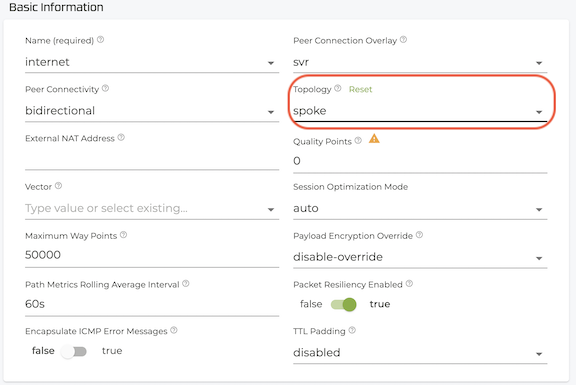
- Verify Topology is set to
spoke.
- Enter neighborhood name
-
Select SAVE.
Setting Topology to spoke pairs this router with the hub router in the internet neighborhood. The conductor auto-generates adjacencies between the two routers when both are committed, enabling the SVR peer path used by the spoke's internet service route.
2. Configure the Spoke LAN Interface
The LAN interface (ge-0-1 / ssr-spoke-lan) connects to the spoke private subnet and assigns the spoke-corp tenant to inbound traffic.
2a. Create the Spoke LAN Device Interface
-
In the Conductor GUI, navigate to the
azure-spoke-routerrouter, then to nodenode0. -
Scroll down to Device Interfaces and select ADD.
-
Enter the name
lan-devand select SAVE. This adds a physical device name for you to assign your LAN interface. -
In the Device Interface Type Settings window, set the type to
ethernet. When the Identifier field becomes visible, select VMBus UUID from the dropdown, and then enter the ID discovered in Step 3. Set Forwarding totrue.
2b. Create the Spoke LAN Network Interface
-
Under the LAN Device Interface, scroll down to Network Interfaces and select ADD.
-
Enter the name
lan1and select SAVE. -
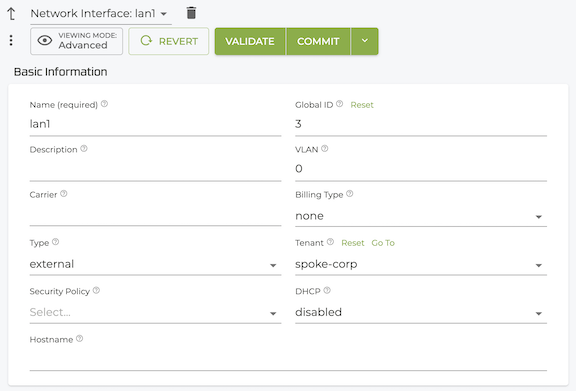
On the Basic Information screen, set the following fields:
- Global-ID:
3 - Type:
external - DHCP:
disabled - Tenant:
spoke-corp- Assigns all inbound LAN traffic to the spoke-corp tenant
- Global-ID:
-
Scroll down to Network Interface settings, and set Source NAT to
true. This is required for management over forwarding.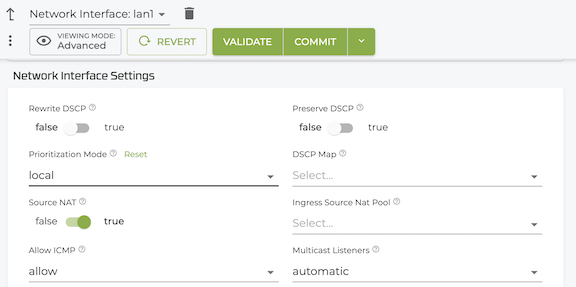
-
Scroll to Interface Addresses and select ADD.
-
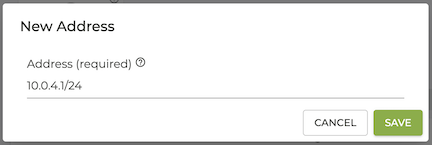
Enter the following IP address and prefix.
- IP Address:
10.0.4.1 - Prefix Length:
24
- IP Address:
3. Configure Spoke DNS
Configure DNS so the spoke router can resolve FQDNs for conductor connectivity and software downloads.
- Return to the Router level for
azure-spoke-router. You can either click the up arrow at the top of the screen until you reach theazure-spoke-routerlevel, or select the down arrow to the right of the Network Interface heading and select theazure-spoke-router.
- Scroll to DNS Config and select ADD.
- In the New DNS Config window, use the Mode dropdown to set the mode to Static, and click SAVE.
- In the DNS Server Address section, click ADD.
- Enter 1.1.1.1 and click SAVE.
- Click ADD again.
- Enter 8.8.8.8 and click SAVE.
4. Create the Spoke Internet Service Route
The spoke router does not break out internet traffic directly. Instead, it forwards internet-bound traffic to the hub router over the SVR peer path established by the shared internet neighborhood.
- Return to the Router level for
azure-spoke-router. - Scroll to Service Routes and select ADD.
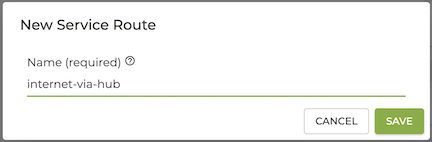
- Enter the name
internet-via-huband select SAVE.
- Under Service Route Information, set the Service Name to
Internet-Traffic
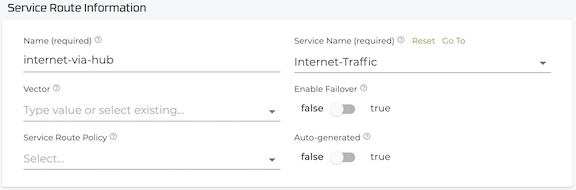
-
Under Service Route Type, select Peer Service Route from the Type dropdown. This routes internet traffic to a peer router via SVR.
-
Under Peer, add
azure-hub-router. The hub router provides internet breakout for the spoke.

- Select VALIDATE then COMMIT.
The peer service route type directs matched traffic over the SVR path to the named peer router. The hub's internet-breakout service route then forwards that traffic to the internet. This is the SSR hub-and-spoke internet breakout pattern.
Verify Connectivity
After committing all configuration, all nodes must reach the synchronized state. From the Conductor GUI, select Routers to view their status. Once reached, verify both routers are online and forwarding traffic correctly.
Verify Both Routers Are Connected to the Conductor
From the Conductor GUI, select Routers. Select the individual routers to see their status.
Both azure-hub-router and azure-spoke-router should show a Connected status within 2–5 minutes of the commit.
Both routers should appear with status Up.
Verify SVR Peering Between Hub and Spoke
To view peering information, select Routers from the Conductor GUI (as above) and select an individual router. Scroll down to the Peer Paths section to view peering details.
From the hub router, the spoke router should appear as an SVR peer with status Up.
From the spoke router, the hub router should appear with status Up.
After SVR adjacencies form, a third entry for the hub-to-spoke peer should also appear.
Verify ARP on the WAN Interfaces
Azure gateways do not respond to ICMP ping. You can use the ARP table from the PCLI to verify WAN connectivity on each router:
admin@node0.azure-hub-router# show arp
admin@node0.azure-spoke-router# show arp
Look for valid ARP entries on the wan1 interface of each router.
Verify Internet Reachability
Optionally, generate test traffic to confirm internet connectivity:
From the hub router:
admin@node0.azure-hub-router# ping 8.8.8.8
From the spoke router:
admin@node0.azure-spoke-router# ping 8.8.8.8
Both routers should reach the internet. Spoke internet traffic traverses the SVR peer path to the hub before being forwarded to the internet.
If the ping fails, begin troubleshooting by reviewing your configuration for incorrect addresses, typos, or other issues.
Configuration Summary
Hub Router
| Object | Name | Key Settings |
|---|---|---|
| Router | azure-hub-router | combo node |
| WAN Device Interface | wan-dev | VMBus UUID, forwarding true |
| WAN Network Interface | wan1 | DHCP v4, conductor, management, source-nat, default-route, neighborhood internet topology hub |
| LAN Device Interface | lan-dev | VMBus UUID, forwarding true |
| LAN Network Interface | lan1 | Tenant hub-corp, static 10.0.2.1/24, source-nat |
| DNS | manual | 1.1.1.1, 8.8.8.8 |
| Service Route | internet-breakout | Internet-Traffic → node0/wan1 (direct breakout) |
Spoke Router
| Object | Name | Key Settings |
|---|---|---|
| Router | azure-spoke-router | combo node |
| WAN Device Interface | wan-dev | VMBus UUID, forwarding true |
| WAN Network Interface | wan1 | DHCP v4, conductor, management, source-nat, default-route, neighborhood internet topology spoke |
| LAN Device Interface | lan-dev | VMBus UUID, forwarding true |
| LAN Network Interface | lan1 | Tenant spoke-corp, static 10.0.4.1/24, source-nat |
| DNS | manual | 1.1.1.1, 8.8.8.8 |
| Service Route | internet-via-hub | Internet-Traffic → peer azure-hub-router (via SVR) |