Step 2: Create the Spoke Router VM
This step deploys the BYOL SSR VM from the Azure Marketplace as a Spoke Router. The deployment template creates the VM, attaches it to the spoke WAN and LAN subnets, installs SSR 7.1.4, and configures the node as a conductor-managed router automatically.
Requirements
The following infrastructure must exist in your Azure subscription before deploying the spoke router:
- The
SSR-VNetVNet with thessr-spoke-wanandssr-spoke-lansubnets already created. - The same Managed Identity used for the hub router, or a separate identity with the same minimum read permissions.
- A conductor where the Spoke Router will onboard.
- A Hub Router. Note the Spoke Router can be deployed while the hub installation completes.
Select the BYOL Plan
-
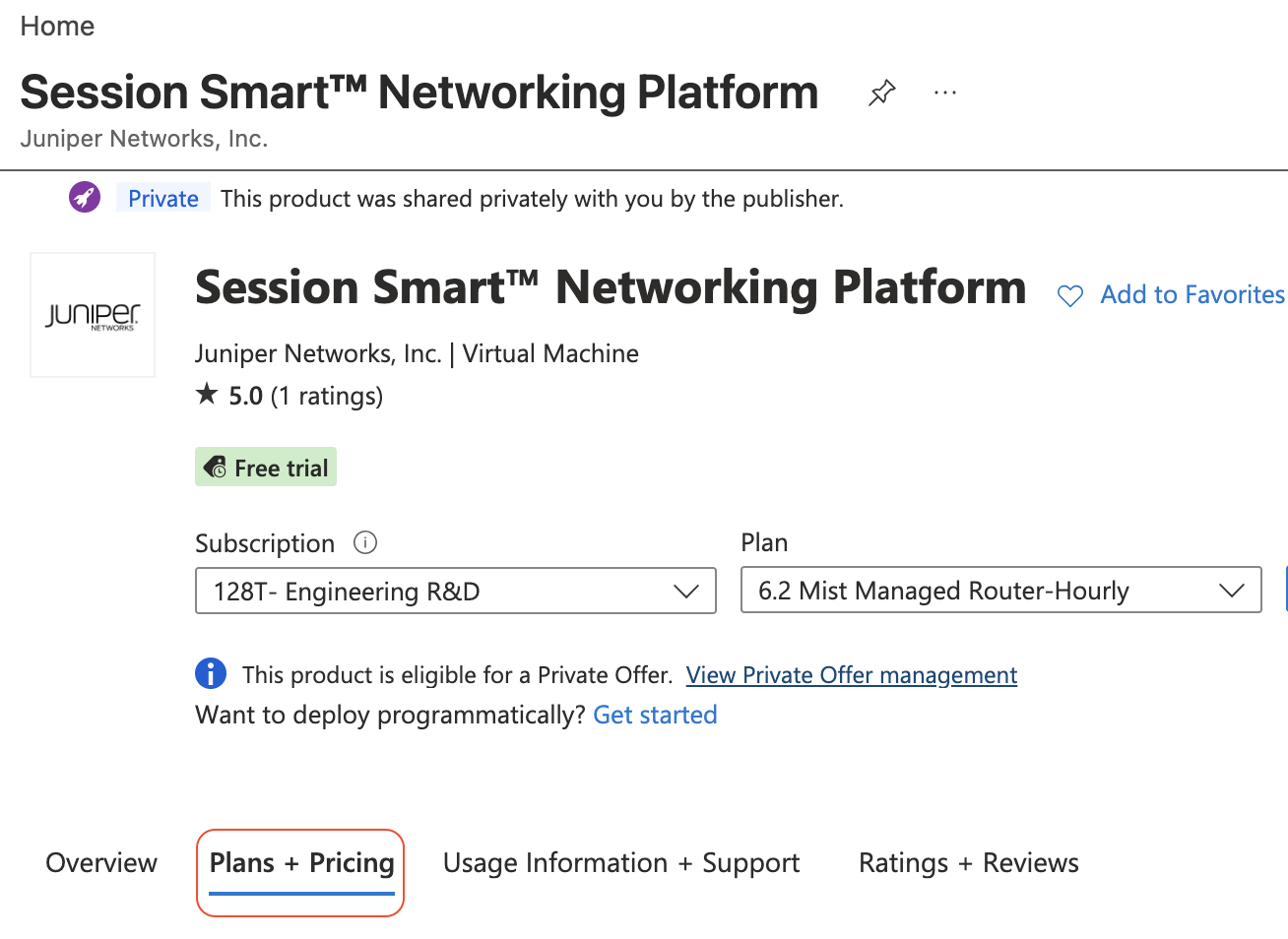
Go to the Session Smart Networking Platform in the Azure Marketplace.
-
Select the Plans + Pricing tab.
-
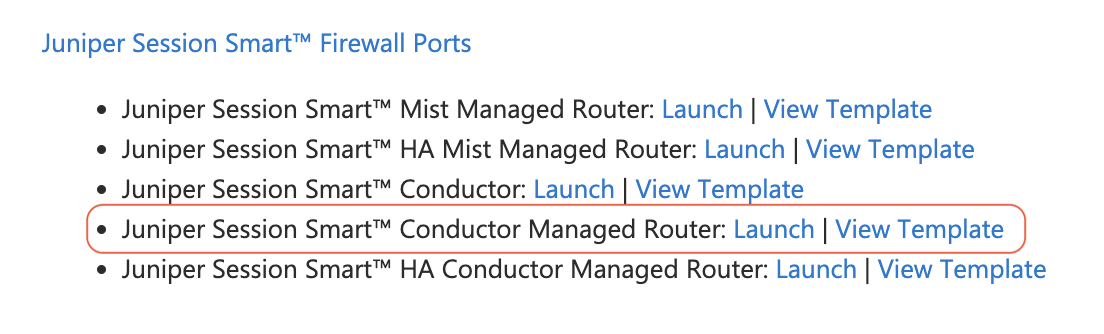
Scroll down to the bottom of the BYOL section.
-
Next to Juniper Session Smart Conductor-managed Router, click Launch.
 )
)
Deploy via Azure Portal
-
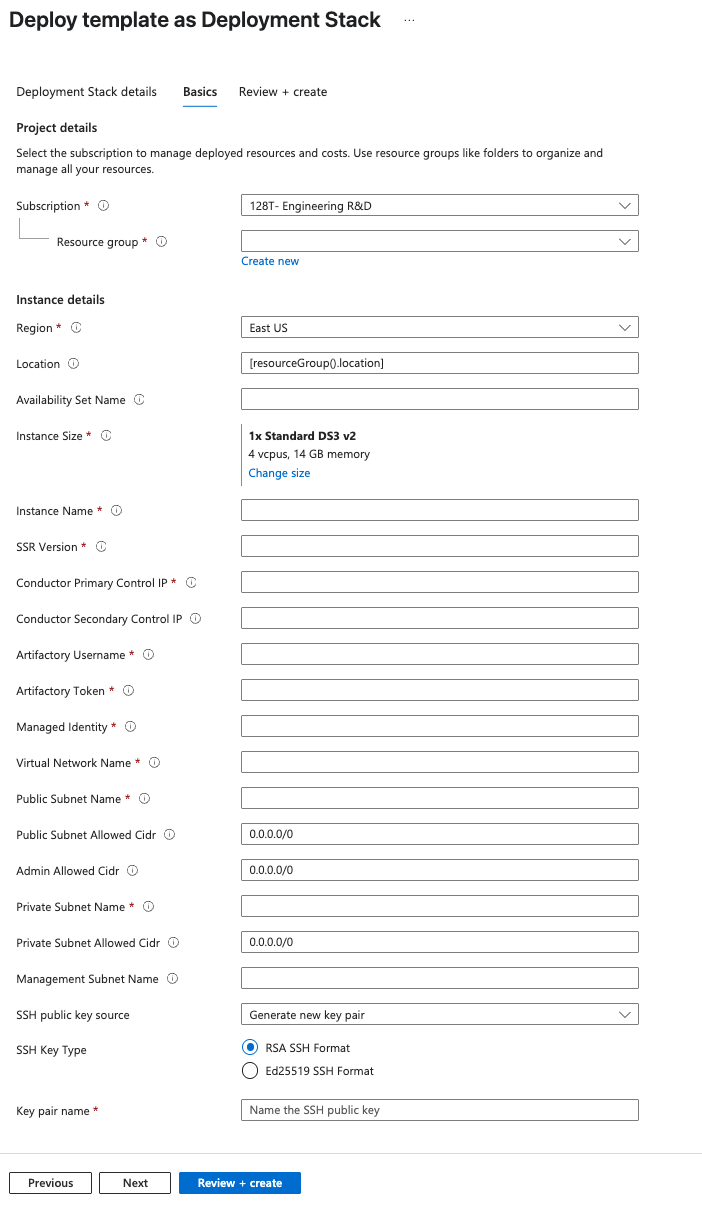
Fill in the template parameters using the following table.
Parameter Example Value Notes Subscription (your subscription) Subscription for the deployment. Resource Group SSR-RGSelect an existing Resource Group Region eastusThe Azure location where the VNet exists. One word, all lowercase (for example, eastus,westus,westeurope). See Azure locations.Instance Size Standard_F8s_v2The Azure VM size to use for the router. Instance Name azure-spoke-routerDisplay name for the VM. SSR Version 7.1.4The BYOL version to install Primary Control IP <conductor-public-ip>Public IP of the conductor Secondary Control IP (leave blank) Only required for HA conductor deployments Artifactory Username (your username) User portion of the Juniper access credentials. Artifactory Token (your token) Token portion of the Juniper access credentials. Managed Identity (your managed identity) Must have the permissions listed in Requirements Virtual Network Name SSR-VNetSelect an existing VNet name. Public Subnet Name ssr-spoke-wanHub WAN subnet Public Subnet Allowed CIDR 0.0.0.0/0This should be restricted at deployment time to the IP address for SSH/HTTPS Admin Allowed CIDR CIDR range allowed for SSH/HTTPS Source IP CIDR range x.x.x.x/32to reach the conductor for administration.Private Subnet Name ssr-spoke-lanHub LAN subnet Private Subnet Allowed CIDR 0.0.0.0/0If the value is known at deployment time, it should be restricted.Source IP address range of the internal workloads to allow access. Admin Public Key Data (contents of your SSH public key) If you have an existing public key, select the appropriate response and provide the key. If not, generate a new one the first time, and reuse the same key subsequent times. cautionPublic Subnet Allowed CIDRandAdmin Allowed CIDRdefault to0.0.0.0/0for initial deployment. After the deployment completes and your environment is stable, update the associated NSG rules to restrict access forPublic Subnet Allowed CIDRto known source addresses. -
Click Next. Azure will validate the input.

-
After reviewing the Terms, click Create.
-
When the deployment completes, open the Outputs tab.
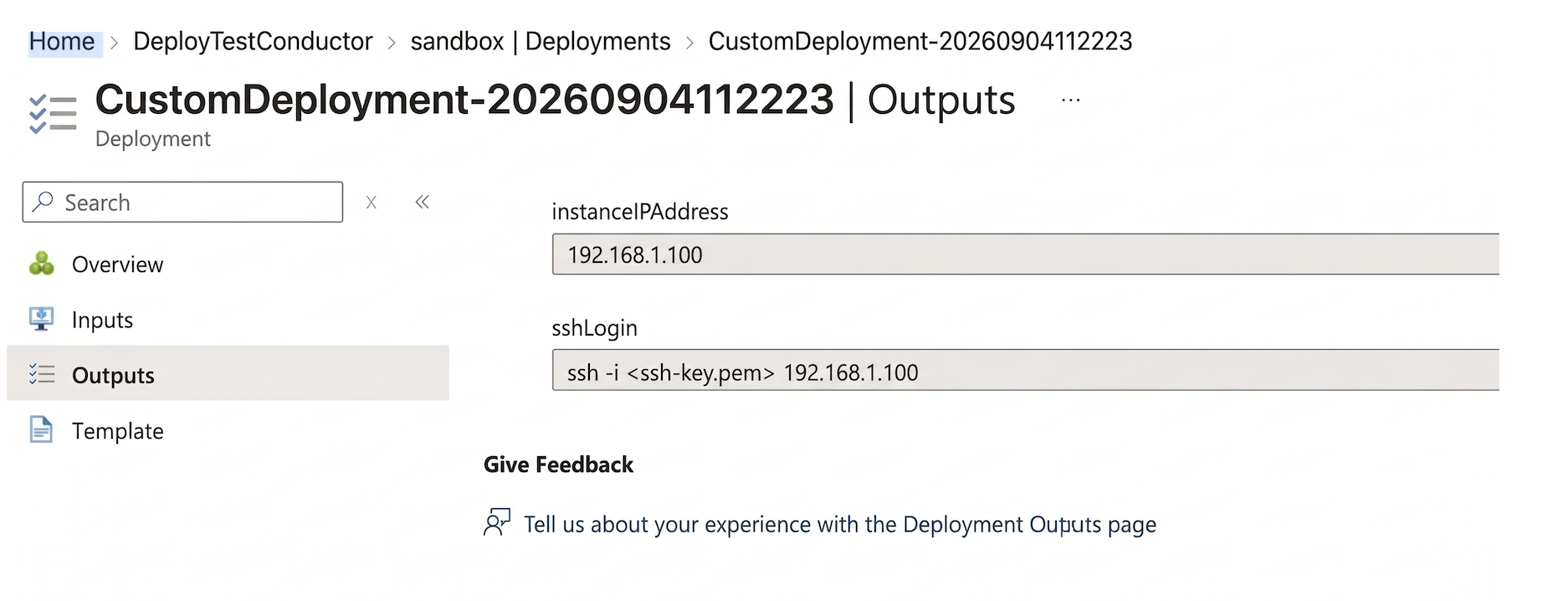
Make a note of the following value — you will need them in later steps:
- Public IP address: The router's Azure assigned Public IP.
Network Interface Layout
Use the following interface information to assign the LAN and WAN interfaces later in this process.
| Linux Interface | Azure NIC Name | Subnet |
|---|---|---|
| ge-0-0 | azure-hub-router-public | ssr-hub-wan |
| ge-0-1 | azure-hub-router-private | ssr-hub-lan |
Next Step
After both the Hub and Spoke VMs are deployed, proceed to Step 3 — Verify Installation and Discover VMBus UUIDs.