Deploying a VMware Router
This guide walks a network engineer through deploying a VMware ESXi virtual machine as a conductor-managed SSR branch (or spoke) router. By the end of the guide, the VMware router VMs will be running SSR 7.1.4-3.r2, managed by an existing SSR conductor, and forwarding internet traffic from LAN users with management traffic returning to the conductor over the same WAN interface used for internet breakout.
This guide assumes a conductor is already installed and running SSR 7.1.4-3.r2. If you have not yet deployed a conductor, complete one of the conductor deployment guides first:
Guide Topics
| Step | Topic | Description |
|---|---|---|
| 1 | Create the VMware VM | Create and configure a VMware ESXi VM to host the Spoke VM. |
| 2 | Install SSR Software and Initialize the Router | Boot the ISO, install SSR software, and initialize the VM as a conductor-managed router. |
| 3 | Find VM NIC PCI Addresses | Identify the WAN and LAN VMXNet3 NIC PCI addresses required for the router configuration. |
| 4 | Configure the Router on the Conductor | Stage the router configuration on the conductor so it can be applied after onboarding. |
| — | Appendix — Router Configuration | PCLI configuration examples. |
Network Topology
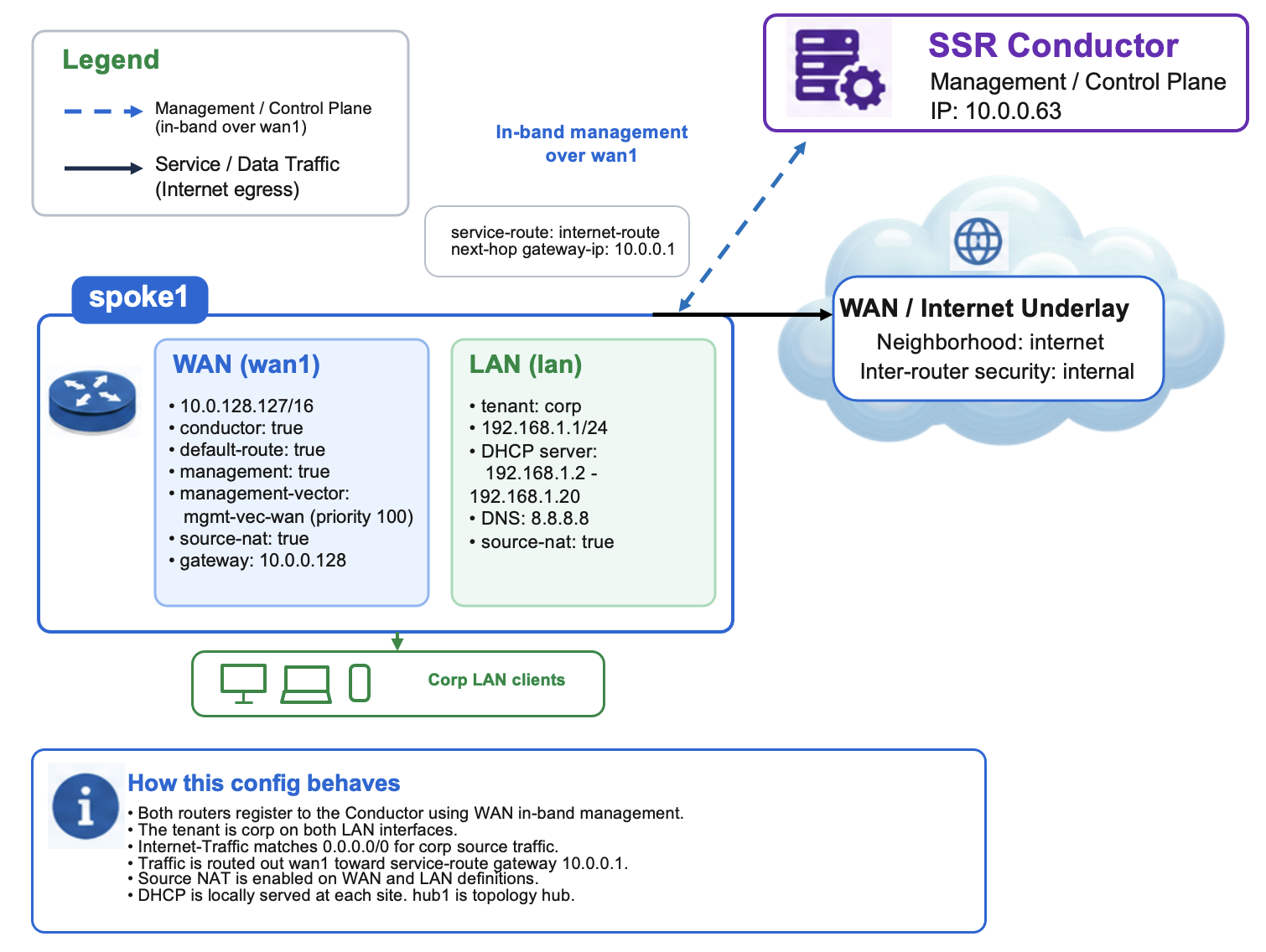
The diagram below shows the logical network this guide builds.
Roles
| Device | Type | Role |
|---|---|---|
Conductor | VMware ESXi VM | Pre-existing conductor — centralized management and provisioning |
Spoke1 | VMware ESXi VM (vSSR) | Conductor-managed branch router — internet breakout and LAN services |
Network Design Reference
The following IP addressing and naming scheme is used consistently throughout this guide. Substitute your own values when configuring your network.
| Parameter | Example Value | Description |
|---|---|---|
| Authority Name | Authority128 | Organizational authority name |
| Conductor Name | Conductor | Pre-existing conductor system name |
| Conductor IP Address | 192.168.100.10 | Conductor IP — must be reachable from the router WAN |
| Router Name | Spoke1 | VMware router system name |
| Router Node Name | node0 | Router node name |
| Router Asset ID | Spoke1 | Asset ID reported after initialization; see Step 2 |
| WAN Device Interface | wan-dev | WAN device interface name |
| WAN Network Interface | wan1 | WAN network interface name |
| WAN PCI Address | (discovered in Step 3) | VMXNet3 WAN NIC PCI address |
| LAN Device Interface | lan-dev | LAN device interface name |
| LAN Network Interface | lan1 | LAN network interface name |
| LAN PCI Address | (discovered in Step 3) | VMXNet3 LAN NIC PCI address |
| Router LAN IP Address | 192.168.1.1/24 | LAN gateway address |
| Tenant Name | corp | LAN-side user tenant |
| Service Name | Internet-Traffic | Internet breakout service |
| Service Address | 0.0.0.0/0 | All internet-bound traffic |
| Neighborhood | internet | SVR neighborhood name |
Prerequisites
Before beginning, ensure the following are available:
- VMware ESXi 7.0 or later — administrative access to an ESXi host.
- Juniper software access credentials — Artifactory username and password for software downloads and token provisioning.
- SSR 7.1.4-3r2 Universal ISO — downloaded from software.128technology.com using your Juniper software access credentials.
- Pre-existing conductor — running SSR 7.1.4-3.r2 at a static IP reachable from the router WAN. This guide uses
192.168.100.10. - WAN portgroup — a VMware portgroup with an ISP Ethernet link that provides DHCP.
- LAN portgroup — a VMware portgroup connected to your branch LAN switch.
- Internet access on the WAN link — required for the router to contact the conductor and download software updates.
Software Version Requirements
This guide targets SSR 7.1.4-3.r2 on the router.
The router software version cannot be higher than the conductor software version. Ensure the conductor is already running SSR 7.1.4-3.r2 before upgrading any router to that version.