Step 3: Find VM NIC PCI Addresses
The SSR router configuration binds each logical interface to a specific physical NIC using that NIC's PCI address. VMware assigns PCI addresses dynamically based on the VM's hardware slot configuration, so you must discover the actual values from the running router VM before configuring the device interface bindings on the conductor.
The SSR router configuration requires the PCI address of each VMXNet3 NIC. Because VMware assigns PCI addresses dynamically based on VM slot assignment, you must discover the actual values from the running VM.
Log In to the Router
-
If you are in the Router CLI, exit and return to the root linux level.
admin@node0.branch1# shell -
Run
lshw -c network businfoto display the device interfaces and their PCI addresses.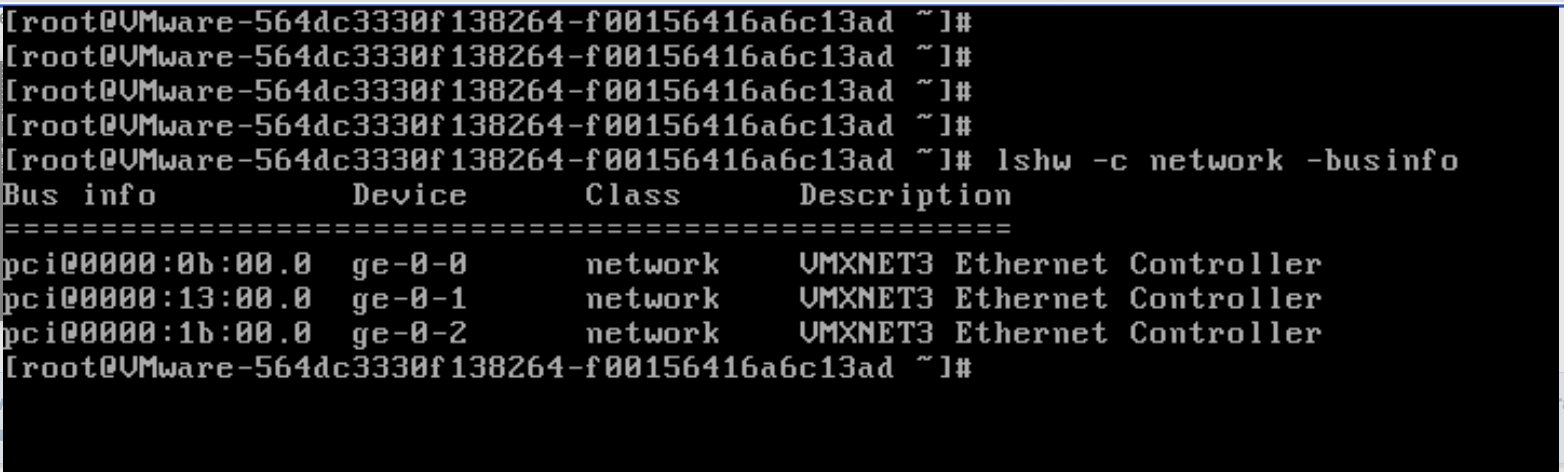
-
Record the device names and addresses in your network design reference:
Interface Device Name Example PCI Address WAN ( wan-dev)ge-0-0(example)0000:0b:00.0(example)LAN ( lan-dev)ge-0-1(example)0000:13:00.0(example)importantThese are example values. Your device names and PCI addresses will differ. Use the values you discover here when you configure the router on the conductor.
Record Your PCI Addresses
Before proceeding to the next step, record the discovered PCI addresses. You will enter these values in Step 4 — Configure the Router on the Conductor.
| Interface | PCI Address |
|---|---|
WAN (wan-dev) | (your value) |
LAN (lan-dev) | (your value) |
Next Step
Proceed to Step 4 — Configure the Router on the Conductor.