Installing a BYOL Conductor-managed Router in GCP
This guide describes the process for deploying a BYOL Session Smart Conductor and a BYOL Session Smart Router (SSR) in Google Cloud Platform (GCP).
The deployment process consists of the following high-level steps:
- Selecting the GCP plan
- Deploying a Session Smart Conductor
- Deploying a Session Smart Conductor-managed Router
BYOL instances only support image-based installations, and require the conductor to run 6.3.0-R1 or newer in order to manage these instances.
Selecting the GCP Plan
The Bring Your Own License (BYOL) plan allows you to install your own licensed copy of SSR software on a GCP virtual machine. Artifactory credentials are required to authenticate access to the BYOL installation repositories.
For the latest information about SSR BYOL offerings, refer to the Cloud Images BYOL Release Notes.
After selecting the BYOL plan, continue to Session Smart Conductor Deployment to deploy a Conductor, or continue to Session Smart Conductor-managed Router Deployment to deploy a Conductor-managed router.
Selecting the Instance Size
The following instance types are supported for virtual SSR in GCP. Choose the size that best meets your requirements. More information on GCP instance types can be found in the GCP machine type documentation.
| Recommended VM Size | Max vNICs Supported | vCPU Cores | Memory |
|---|---|---|---|
| c2-standard-4 | 4 | 4 | 16 GB |
| c2-standard-8 | 8 | 8 | 32 GB |
| c2-standard-16 | 10 | 16 | 64 GB |
| c2-standard-30 | 10 | 30 | 120 GB |
Session Smart Router Size recommendatations can be found in System Requirements.
Session Smart Conductor Deployment
Use the following information to deploy a BYOL Session Smart Conductor in GCP.
Requirements
The following infrastructure must exist in your GCP project:
- A VPC network where the Conductor will be deployed.
- A subnetwork for the Conductor control interface.
- This subnet must be reachable for SSH and HTTPS administration access.
- Session Smart Routers managed by this Conductor must be able to reach the Conductor IP address in this subnet.
- A GCP service account for deployment automation.
Deployment
A BYOL Conductor can be deployed manually through Google Cloud Marketplace or through infrastructure automation (for example, gcloud-based workflows or Terraform).
When deploying a BYOL Session Smart Conductor, the following infrastructure elements are created:
- Virtual machine based on the selected Session Smart Networking BYOL image
- A control network interface
- Firewall rules associated with the control network
- A public IP address (if selected) for administration access
Google Cloud Marketplace
To deploy the Session Smart Networking software through Google Cloud Marketplace:
- Navigate to the Session Smart Networking Platform BYOL offering in Google Cloud Marketplace.
- Click Launch.
- Provide deployment inputs for your project, region, zone, and machine type.
- In SSR mode, select Conductor.
- Provide the BYOL software inputs:
- SSR software version
- Artifactory username
- Artifactory token/password
- Provide administrative access settings:
- Allowed CIDR(s) for SSH/HTTPS access
- SSH public key
- Provide the VPC and Subnetwork for the Control Interface.
- Review and deploy.
Leave the Mist-managed and Conductor-managed configuration sections empty.
A complete description of all parameters can be found in Deployment Parameters.
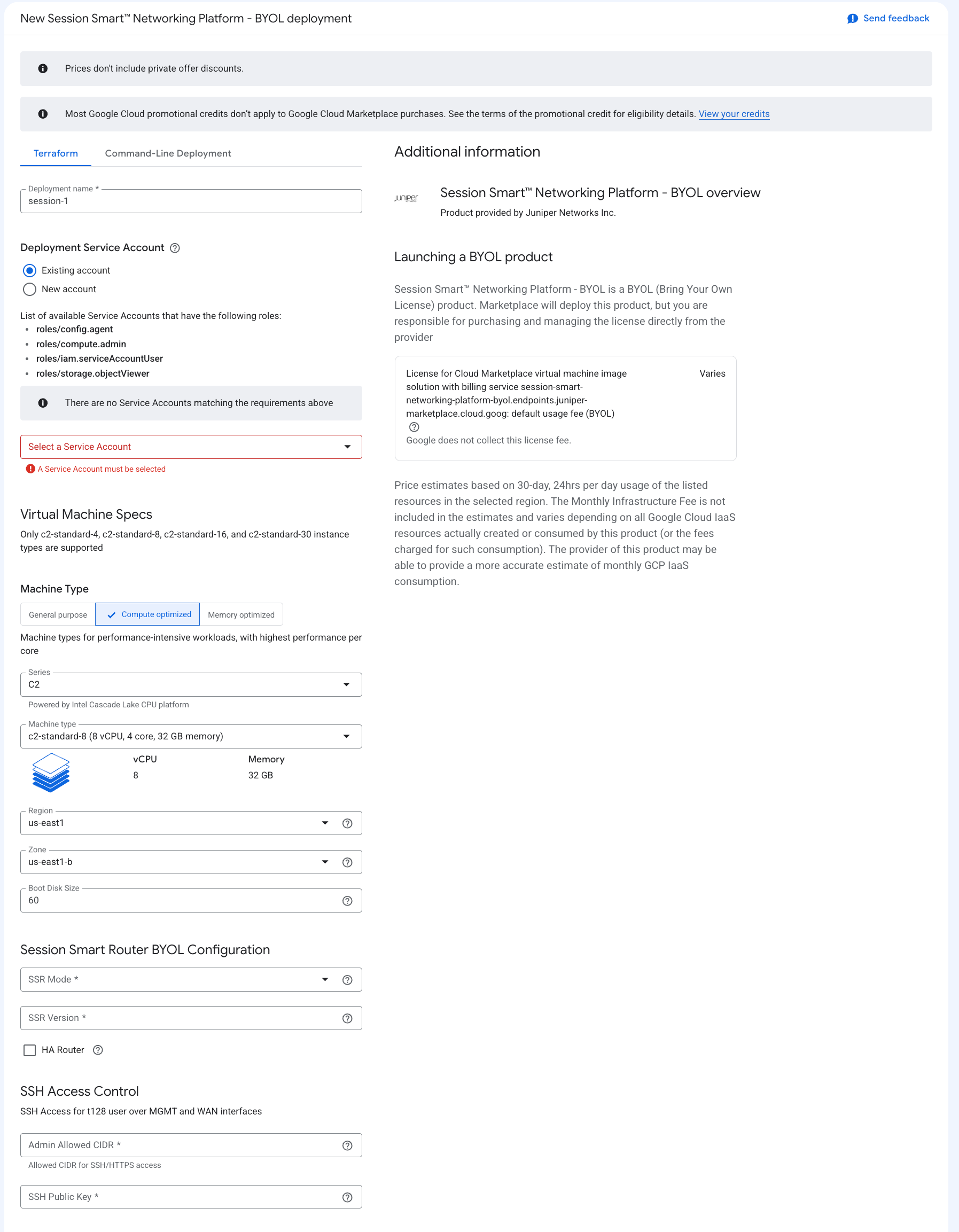
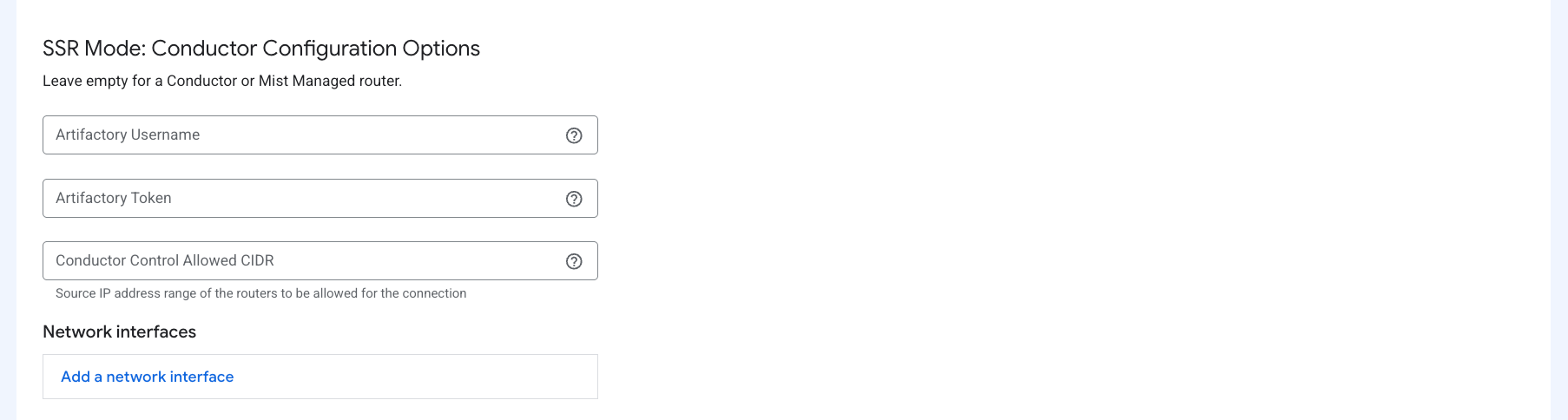
Once deployment completes, use the output values from the deployment details to connect to the instance.
The non-interactive, Zero Touch Provisioning (ZTP) method is triggered after deployment. After the VM is created, allow an additional 10 to 15 minutes for the requested SSR version to install and for initialization to complete.
Terraform Deployment
A BYOL Session Smart Conductor can be deployed using Terraform.
- Navigate to the Session Smart Networking Platform BYOL offering in Google Cloud Marketplace.
- Click Launch.
- Select the Command-Line Deployment tab.
- Click Download to download the Terraform deployment package.
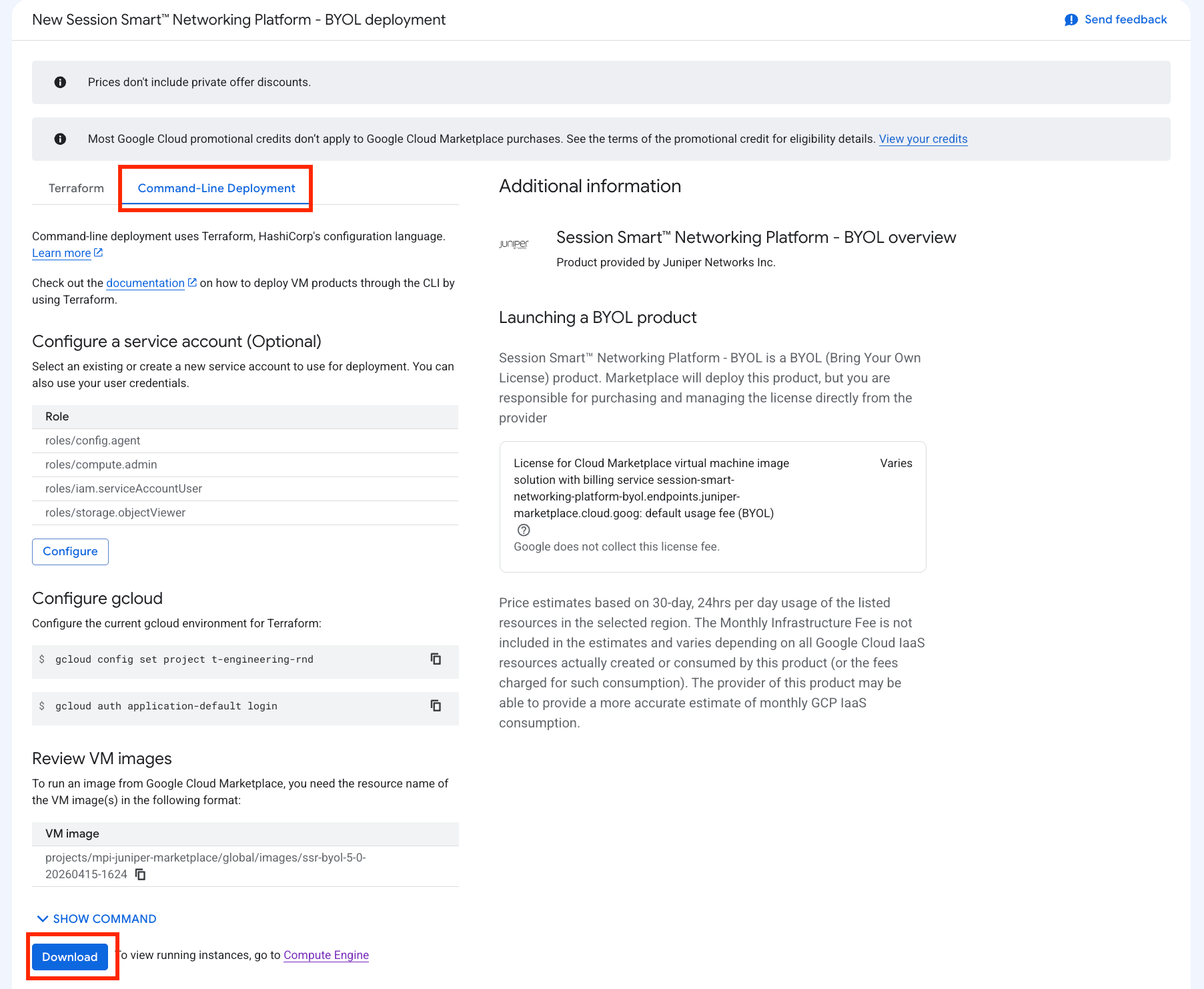
In the downloaded package, create a Terraform variables file named ssr-variables.tf and provide values similar to the following. See Deployment Parameters for all possible variables.
ssr_mode = "conductor"
ssr_version = "7.0.1"

artifactory_username = "username"
artifactory_token = "password"
ssh_public_key = "ssh key"
admin_allowed_cidr = "cidr"

control_nic_network = "ssr-public"
control_nic_subnet = "public"
control_nic_allowed_cidr = "0.0.0.0/0"
Run Terraform:
terraform init
terraform apply --var-file=ssr-variables.tf
Cloud-init Onboarding
When launching a GCP instance using automation, the following cloud-init user-data can be used to onboard a BYOL Conductor:
#cloud-config
write_files:
	- path: /etc/128T-hardware-bootstrapper/onboarding-config.json
		content: |
			{
				"name": "<conductor-name>",
				"ssr-version": "<version>",
				"mode": "conductor",
				"artifactory-user": "<username>",
				"artifactory-password": "<password>",
				"node-name": "node0",
				"cloud-provider": "gcp"
			}
| Option | Meaning |
|---|---|
| name | The name of the conductor/router. |
| ssr-version | The SSR software version to be installed on the instance (BYOL only). |
| artifactory-user | Username portion of the artifactory credentials. |
| artifactory-password | Password/token portion of the artifactory credentials. |
| node-name | The node name being provisioned. For a standalone conductor, use node0. |
| download-timeout | The timeout duration for installing BYOL (default: 6h) |
| download-retries | The number of times to retry SSR installation (default: unlimited) |
Additional Conductor configuration options are described in Initialize Your Device - Advanced Workflows.
Manual Onboarding
If onboarding configuration was not supplied at deployment time, execute manual onboarding:
- Log in to the instance using the configured Linux user and SSH key.
- Run
sudo /usr/libexec/hardwareBootstrapper128t config-generator. - Follow the prompts to generate and apply onboarding configuration.
- Allow the system to complete initialization and reboot when prompted.
Deployment Parameters (Conductor)
The following are the common deployment parameters for a BYOL Conductor in GCP.
| GCP Marketplace Name | Terraform Variable | Description |
|---|---|---|
| Machine Type | machine_type | GCP machine type for the Conductor VM (for example, c2-standard-8). |
| Region | region | GCP region for the Conductor deployment. |
| Zone | zone | GCP zone within the selected region. |
| Boot Disk Size | boot_disk_size | Boot disk size in GB. Minimum 60 GB is recommended. |
| SSR Mode | ssr_mode | Set to conductor for a Conductor deployment. |
| SSR Version | ssr_version | SSR software version installed. |
| Artifactory Username | artifactory_username | Username for BYOL repository access. |
| Artifactory Token | artifactory_token | Token/password for BYOL repository access. |
| Admin Allowed CIDR | admin_allowed_cidr | Source CIDR allowed for SSH and HTTPS administration. |
| SSH Public Key | ssh_public_key | Public SSH key added for administrator access. |
| Control Allowed CIDR | control_nic_allowed_cidr | Source CIDR allowed to reach the Conductor control interface. |
| Control Interface Network | control_nic_network | VPC network name used by the Conductor control interface. |
| Control Interface Subnet | control_nic_subnet | Subnet name used by the Conductor control interface. |
Session Smart Conductor-managed Router Deployment
Use the following guide to deploy a BYOL Session Smart Conductor-managed router in GCP.
Requirements
The following infrastructure must exist in your GCP project:
- A VPC and subnetwork for each network interface attached to the router.
- Public: Provides connectivity to external/remote SSR peers.
- Private: Provides connectivity to internal workloads.
- [Optional] Management: Used for administration and conductor management reachability.
- [Optional] HA Sync: Required for HA routers.
- [Optional] HA Fabric: Required for HA routers.
- A deployed Session Smart Conductor reachable from the router management path.
- A GCP service account for deployment automation.
Deployment
A BYOL Conductor-managed Router can be deployed manually through Google Cloud Marketplace or through infrastructure automation (for example, gcloud-based workflows or Terraform).
When deploying a BYOL Session Smart Router, the following infrastructure elements are created:
- Virtual machine based on the selected Session Smart Networking BYOL image
- Two or more network interfaces (management, WAN, LAN, and optional HA interfaces)
- Firewall rules associated with each attached network
- Public IP address assignment for interfaces where external access is required
Google Cloud Marketplace
At deployment time:
- Navigate to the Session Smart Networking Platform BYOL offering in Google Cloud Marketplace.
- Click Launch.
- Provide deployment inputs for your project, region, zone, and machine type.
- In SSR mode, select Conductor-managed.
- Provide the BYOL software inputs:
- SSR software version
- Artifactory username
- Artifactory token/password
- Specify whether the router is High Availability (HA).
- Provide administrative access settings:
- Allowed CIDR(s) for SSH/HTTPS access
- SSH public key
- Provide at least one reachable Conductor control IP address (or FQDN).
- Provide network interface settings.
- Minimum one WAN and one LAN interface are required.
- Configure allowed CIDR values for WAN and LAN access.
- Optionally configure an out-of-band management interface.
- Configure HA Sync and HA Fabric interfaces when HA is enabled in step 6.
- Review and deploy.
A complete description of all parameters can be found in Deployment Parameters.
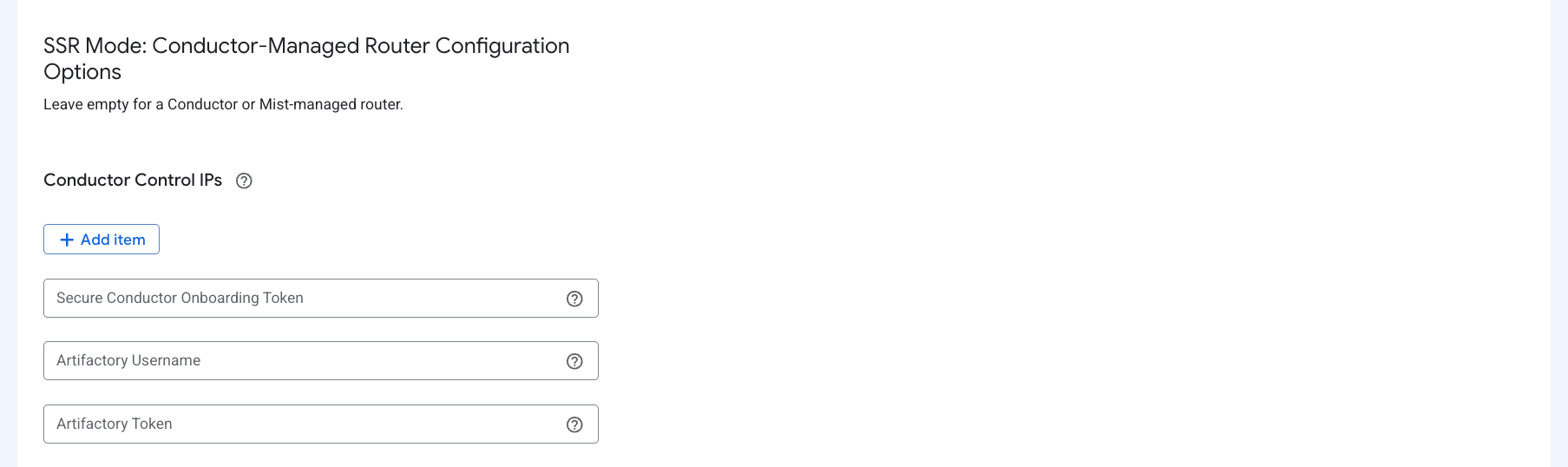
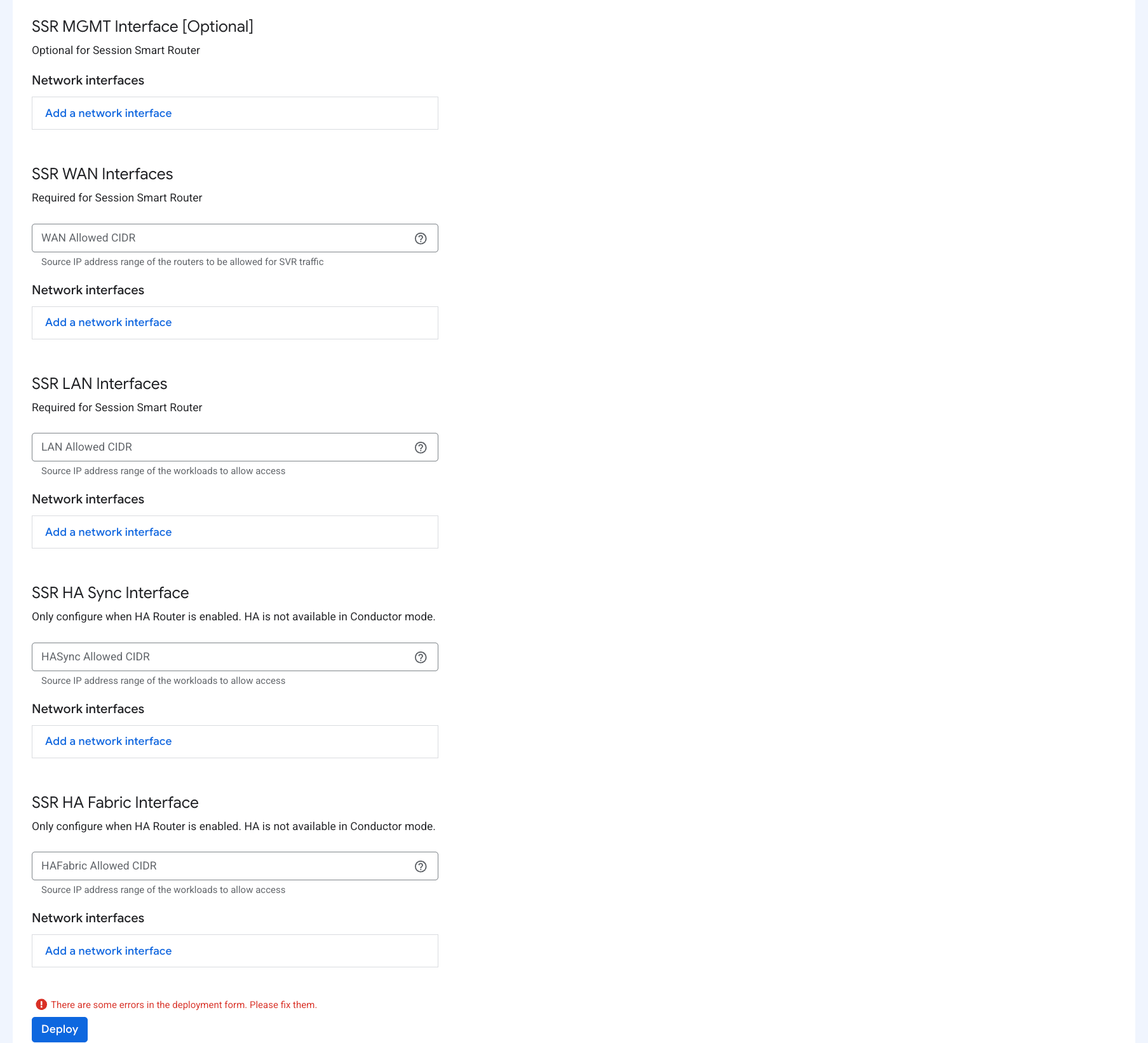
Once deployment completes, information is provided in the Outputs tab and the BYOL installation process begins. After the VM is deployed, allow an additional 10 to 15 minutes for the requested SSR version to install.
To log in to the instance via SSH, use t128 as the username and the SSH public key provided in the template.
Terraform Deployment
A BYOL Conductor-managed Router can be deployed using Terraform.
- Navigate to the Session Smart Networking Platform BYOL offering in Google Cloud Marketplace.
- Click Launch.
- Select the Command-Line Deployment tab.
- Click Download to download the Terraform deployment package.
In the downloaded package, create a Terraform variables file named ssr-variables.tf and provide values similar to the following. See Deployment Parameters for all possible variables.
ssr_mode = "conductor-managed"
ssr_version = "7.0.1"

artifactory_username = "username"
artifactory_token = "password"
conductor_hosts = ["<conductor-ip-or-fqdn>"]
ssh_public_key = "ssh key"
admin_allowed_cidr = "cidr"

wan_nic_allowed_cidr = "0.0.0.0/0"
wan_nic_networks = [
  "ssr-public"
]
wan_nic_subnets = [
  "public"
]

lan_nic_allowed_cidr = "0.0.0.0/0"
lan_nic_networks = [
  "ssr-private"
]
lan_nic_subnets = [
  "private"
]
Run Terraform:
terraform init
terraform apply --var-file=ssr-variables.tf
Cloud-init Onboarding
When launching a GCP instance using automation, use cloud-init user-data to onboard a Conductor-managed router:
#cloud-config
write_files:
	- path: /etc/128T-hardware-bootstrapper/onboarding-config.json
		content: |
			{
				"name": "<router-name>",
				"ssr-version": "<version>",
				"mode": "conductor-managed",
				"artifactory-user": "<username>",
				"artifactory-password": "<password>",
				"conductor-hosts": ["<conductor-ip>"],
				"cloud-provider": "gcp"
			}
| Option | Meaning |
|---|---|
| name | The name of the router instance. |
| ssr-version | The SSR software version to be installed on the instance (BYOL only). |
| mode | Set to conductor-managed for a Conductor-managed router. |
| artifactory-user | Username portion of the artifactory credentials. |
| artifactory-password | Password/token portion of the artifactory credentials. |
| conductor-hosts | One or more IP addresses (or FQDNs) of reachable Conductor control interfaces. |
| download-timeout | The timeout duration for installing BYOL (default: 6h) |
| download-retries | The number of times to retry SSR installation (default: unlimited) |
Manual Onboarding
If onboarding configuration was not supplied during deployment:
- Log in to the instance using the configured Linux user and SSH key.
- Run
sudo /usr/libexec/hardwareBootstrapper128t config-generator. - Choose router onboarding and provide Conductor and BYOL software details.
- Apply configuration and allow initialization to complete.
Deployment Parameters (Conductor-managed Router)
The following are the common deployment parameters for a BYOL Conductor-managed Router in GCP.
| GCP Marketplace Name | Terraform Variable | Description |
|---|---|---|
| Machine Type | machine_type | GCP machine type for the Router VM. |
| Region | region | GCP region for deployment. |
| Zone | zone | GCP zone within the selected region. |
| Boot Disk Size | boot_disk_size | Boot disk size in GB. Minimum 60 GB is recommended. |
| SSR Mode | ssr_mode | Set to conductor-managed for this workflow. |
| SSR Version | ssr_version | SSR software version installed. |
| HA Router | ha_router | Enables HA-specific interfaces and HA onboarding behavior. |
| Artifactory Username | artifactory_username | Username for SSR repository access. |
| Artifactory Token | artifactory_token | Token/password for SSR repository access. |
| Admin Allowed CIDR | admin_allowed_cidr | Source CIDR allowed for SSH and HTTPS administration. |
| SSH Public Key | ssh_public_key | Public SSH key added for administrator access. |
| Conductor Hosts | conductor_hosts | One or more reachable Conductor control IP addresses for onboarding. |
| [Optional] Management Interface Network | mgmt_nic_network | VPC network name for optional out-of-band management interface. |
| [Optional] Management Interface Subnet | mgmt_nic_subnet | Subnet name for optional out-of-band management interface. |
| WAN Allowed CIDR | wan_nic_allowed_cidr | Source CIDR allowed to reach WAN interfaces. |
| WAN Interface Networks | wan_nic_networks | List of VPC network names for WAN interfaces (minimum one). |
| WAN Interface Subnets | wan_nic_subnets | List of subnet names for WAN interfaces aligned to wan_nic_networks. |
| LAN Allowed CIDR | lan_nic_allowed_cidr | Source CIDR allowed from internal workloads to LAN interfaces. |
| LAN Interface Networks | lan_nic_networks | List of VPC network names for LAN interfaces (minimum one). |
| LAN Interface Subnets | lan_nic_subnets | List of subnet names for LAN interfaces aligned to lan_nic_networks. |
| [Optional] HA Sync Allowed CIDR | hasync_nic_allowed_cidr | Source CIDR allowed for HA sync traffic. |
| [Optional] HA Sync Interface Network | hasync_nic_network | VPC network name for HA sync interface. |
| [Optional] HA Sync Interface Subnet | hasync_nic_subnet | Subnet name for HA sync interface. |
| [Optional] HA Fabric Allowed CIDR | hafabric_nic_allowed_cidr | Source CIDR allowed for HA fabric traffic. |
| [Optional] HA Fabric Interface Network | hafabric_nic_network | VPC network name for HA fabric interface. |
| [Optional] HA Fabric Interface Subnet | hafabric_nic_subnet | Subnet name for HA fabric interface. |
Network Interface Layout
For Conductor-managed Router deployments in GCP, interfaces are attached in a deterministic order. This ordering is important because it determines the interface names you must use in router configuration and troubleshooting.
Attachment order:
- Management (optional)
- WAN interfaces (required, at least one)
- LAN interfaces (required, at least one)
- HA Sync (optional, required when HA is enabled)
- HA Fabric (optional, required when HA is enabled)
Interface naming starts at ge-0-0 and increments in the same order shown above.
Example: if you deploy an HA router with one Management interface, two WAN interfaces, and two LAN interfaces, interface names are assigned as follows:
| Interface Name | Role | Example Subnet |
|---|---|---|
| ge-0-0 | Management | mgmt |
| ge-0-1 | WAN 1 | wan0 |
| ge-0-2 | WAN 2 | wan1 |
| ge-0-3 | LAN 1 | lan0 |
| ge-0-4 | LAN 2 | lan1 |
| ge-0-5 | HA Sync | hasync |
| ge-0-6 | HA Fabric | hafabric |
When building templates or automation, keep the network and subnet arrays in the same intended order so interface naming remains predictable across deployments.
Troubleshooting
Deployment Fails in Google Cloud Marketplace
If the deployment failed in the GCP Marketplace, a required parameter is likely missing. To view the error:
- Select View Logs in the upper right corner
- In the Build Summary step, search for the phrase
Error: Resource precondition failed
This will provide you with the necessary actions to successfully deploy a Session Smart Router.
Device Does Not Initialize Properly
Once the instance is launched with the correct parameters, the device will begin to install the SSR software. After installing the software, the device will either initialize as a Conductor or automatically onboard to the associated conductor. This process can take up to 15 minutes to complete.
If the instance does not install SSR as expected, SSH into the instance using the credentials provided during VM creation.
-
Try to log into the pcli, run
su adminand thenshow system. -
If the pcli is not accessible or the status and necessary action is not obvious, capture the Hardware Bootstrapper tech support (
/var/log/128T-hardware-bootstrapper/hardware-bootstrapper-tech-support.zip) and examine the journal for128T-hardware-bootstrapperandember.