Factory Reset
Version History
| Release | Modification |
|---|---|
| 7.1.0 | SSR 4x0 Factory Reset support added. |
The SSR software, SSR1x0, SSR1x00, and SSR4x0 series provide the ability to reset to factory defaults. The SSR software and SSR1x0/1x00 devices use a software reset to return to the original factory defaults, and remove customer configurations.
The SSR400 and SSR440 provides software-activated reset as well as a reset button on the device. With the reset button, you have the option of resetting to a previously defined rescue configuration, or reset to the factory configuration and perform a secure zeroization.
Use the information below to determine the best option for your deployment.
SSR400 and SSR440 Factory Reset
The SSR400 and SSR440 devices are equipped with a reset button to perform the following actions:
- Press and hold for 1 to 4 seconds to reboot the device.
- Press and hold for 5 to 15 seconds initiates a reset to a rescue configuration.
- Press and hold for 16 to 30 seconds initiates a reset to the factory default configuration.
Holding the reset button for longer than 30 seconds cancels any of the button press actions described above.
Reboot
This action is the standard system reboot, often performed as part of troubleshooting. Hold the Reset button for up to 4 seconds to reboot.
Reset to the Rescue Configuration
Press and hold the Reset button for more than 5 seconds but less than 15 to load and commit the rescue configuration. The rescue, configuration is used as a manual fall back if the device configuration becomes corrupt or is unable to establish communications with the network.
Note that if a rescue configuration has not been set, holding the reset button for 5-15 seconds does nothing.
The rescue configuration is set via API at onboarding. For information about using the API to generate a rescue configuration, see Create a Rescue Reset Configuration. It should be noted that in an HA configuration, if one node is reset to the rescue config, the other node (standby node) will receive the same rescue configuration from it's HA peer.
Factory Reset
Press and hold the Reset button for 16 to 30 seconds to initiate a reset to the factory default configuration.
This process deletes all configurations on the device, including the backup configurations and rescue configuration, and loads and commits the original factory configuration. It also removes all data files, including customized configuration and log files, by unlinking the files from their directories. The command removes all user-created files from the system, including passwords, secrets, and private keys for SSH, certificates, local encryption, local authentication, IPsec, RADIUS, TACACS+, and others.
A log file of the platform cleanup operation is written out to /tmp while the reset factory-default command is being run. After the device is scrubbed, the log file is migrated to /var/log for inspection.
Factory reset does not revert the device to the software version installed during manufacture. The device remains at the current software version.
SSR400 and SSR 440 Zeroization
The following procedure may be used as a last resort recovery method when both the Serial Console Port and Firmware Recovery have been set as disabled. This process zeroizes the device, and requires a new software installation.
-
Power off the system.
-
Press and hold the Reset switch.
-
Power on the system. Do not release the Reset switch. When the switch is detected, the LED will fade to Red.
-
Continue to hold the Reset switch for 10 seconds. The LED will slowly fade from red to black.
If you release the Reset switch during the 10 seconds of red to black fade, the system will simply reboot without zeroization.
-
The LED will turn white, and fade to black.
-
Release the Reset switch.
-
The LED will slowly fade white to black every two seconds until the zeroization is complete.
DO NOT reboot during this process. The zeroization will not complete.
- When the LED has stopped the slow white to black fade, all software, data and configuration have been erased and the OS will shut down. Power cycle the device to reboot the system.
The device has now been zeroized, and has no configuration. The SSR OS must be reinstalled from a USB. See SSR Installation to begin this process.
Software Factory Reset
SSR Software Factory reset removes system files and zero-writes unallocated data for increased security. Once initiated, the system stops all running processes and restores the system to the factory default configuration.
The restore system factory-default command performs the following steps:
- Reset the device configuration to the factory defaults found on the device hard drive.
- Commit the configuration.
- Reboot the device.
restore system factory-default [force] [router <router>] [node <node>] [<mode>]
This process deletes all configurations on the device, including the backup configurations and rescue configuration, and loads and commits the original factory configuration. It also removes all data files, including customized configuration and log files, by unlinking the files from their directories. The command removes all user-created files from the system, including passwords, secrets, and private keys for SSH, certificates, local encryption, local authentication, IPsec, RADIUS, TACACS+, and others.
A log file of the platform cleanup operation is written out to /tmp while the reset factory-default command is being run. After the device is scrubbed, the log file is migrated to /var/log for inspection.
Additional Security - Zeroization Process
This process is for use with SSR Software and SSR1x0 and SSR1x00 devices.
When equipment is discarded or removed from its operational environment, the following process can be used to ensure there is no unauthorized access possible to sensitive residual information (e.g. cryptographic keys, keying material, PINs, passwords, etc.) on SSR network equipment.
For the certified SSR platforms, all software and configuration reside on the SSD hard drive /dev/sda. Use the following procedure to zeroize/erase the SSD hard drive.
-
Log in to the local serial console as the root user
-
Enter the following to gracefully shut down SSR service:
systemctl stop 128T
- Enter the following command to enter single-user mode:
systemctl emergency
-
Re-enter the root password when prompted
-
Enter the following command to zeroize the SSD hard drive:
dd if=/dev/zero of=/dev/sda bs=1M conv=fsync status=progress
This process may take 30 minutes or more and will report No space left on device when complete.
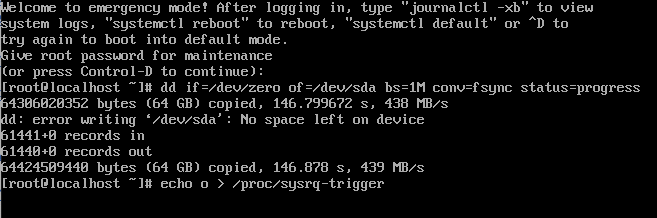
- Power off the system.
The system is wiped of all information, and is no longer operational as an SSR. If the system is to be reused in future, perform the ISO installation process.
Create a Rescue Configuration
The following API allows an administrator the ability to create a configuration snapshot to be used as a rescue configuration for routers should they experience a catastrophic failure or become corrupt. This configuration is generated at the router level, and then imported by the Chassis Manager during a reset operation.
Endpoint:
POST /api/v1/config/export-golden-config
Purpose:
Exports the current configuration (running or candidate) to a predefined rescue config file that can be later imported.
Authentication & Authorization:
- Requires authentication
- Requires WRITE permission on the entire config resource
- Can be handled by inactive nodes (will be redirected to active node) Request Body (JSON):
{
  "datastore": "running" | "candidate"
}
Parameters:
- datastore (required, string): Specifies which configuration datastore to export
running: Export the currently active running configurationcandidate: Export the current candidate configuration
Behavior:
- Automatically uses the filename
_golden-config(predefined, not user-specified) - Always overwrites any existing rescue config file
- The export is directed to the active node
- Creates a configuration export file to be imported later
Response:
- Success (200 OK):
{
  "export-path": "/path/to/_golden-config",
  "exportPath": "/path/to/_golden-config"
}
Note: Both export-path (kebab-case) and exportPath (camelCase) are provided for backward compatibility.
Error Responses:
- 400 Bad Request: Invalid datastore value; must be
runningorcandidate - 401 Unauthorized: Authentication required
- 403 Forbidden: Insufficient permissions (requires WRITE access to entire config)
- 404 Not Found: Configuration not found or other export errors