SSR Device Default Port Layout
The following sections provide information about port connections on Juniper SSR devices.
SSR 120
The following image of the SSR120 includes Cellular and TAA subvariants.
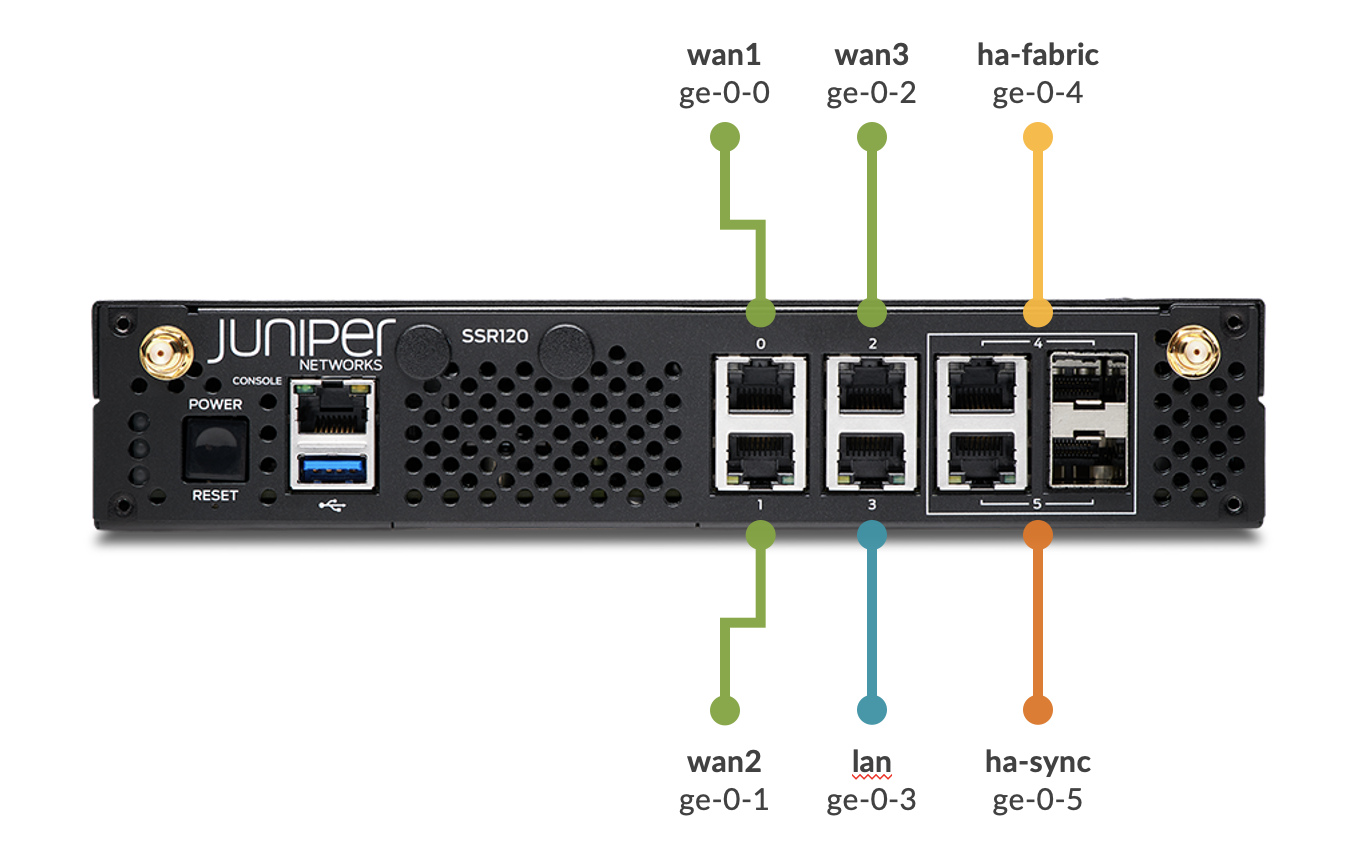
Port Mapping Info
| Name | Port | Description | PCI Address | Speed | Type |
|---|---|---|---|---|---|
| ge-0-0 | Port 0 | WAN 1 network interface | 0000:04:00.1 | 1000 | WAN |
| ge-0-1 | Port 1 | WAN 2 network interface | 0000:04:00.0 | 1000 | WAN |
| ge-0-2 | Port 2 | WAN 3 network interface | 0000:03:00.1 | 1000 | WAN |
| ge-0-3 | Port 3 | LAN network interface | 0000:03:00.0 | 1000 | LAN |
| ge-0-4 | Port 4 | HA fabric network interface | 0000:02:00.1 | 1000 | HAFabric |
| ge-0-5 | Port 5 | HA sync network interface | 0000:02:00.0 | 1000 | HASync |
Your SSR device uses Port 0 (ge-0-0) as a default WAN port to contact Mist for zero-touch provisioning (ZTP). You will also be setting up Port 3 (ge-0-3) with a LAN network.
-
Connect port 0 to an Ethernet WAN link capable of providing the device with:
- DHCP address assignment
- Connectivity to the Internet and Mist
-
Connect port 3 to your LAN devices, including:
- Mist-managed Juniper EX switches
- Mist APs
- User devices
-
Power on the device.
-
Use the Mist Claim Code to associate the device with a Mist Organization.
SSR 130
The following image of the SSR130 includes Cellular and TAA subvariants.
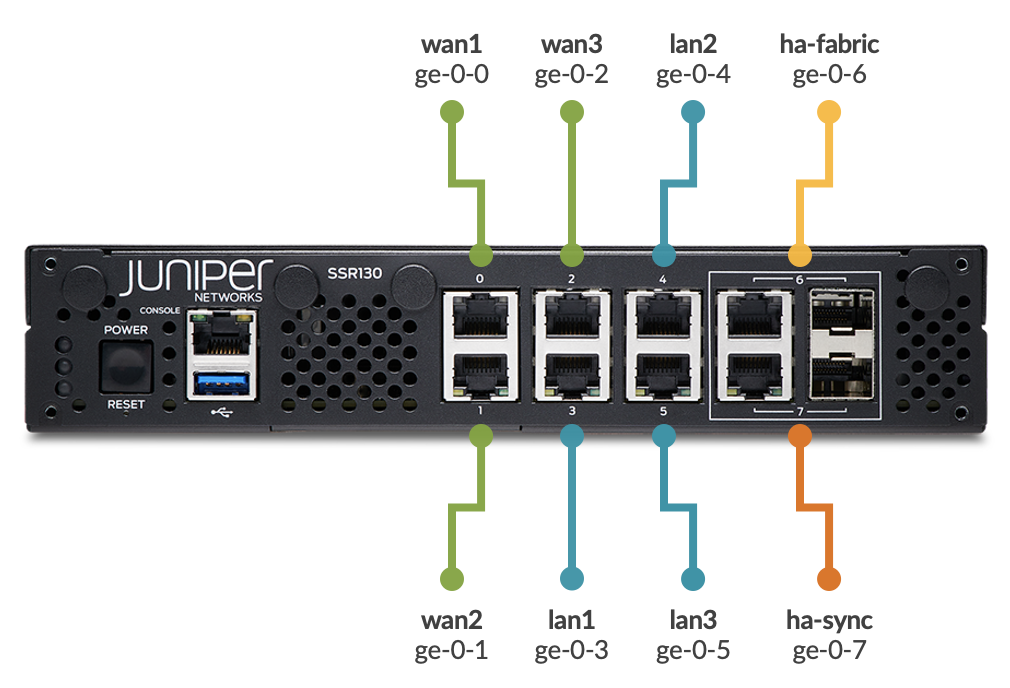
Port Mapping Info
| Name | Port | Description | PCI Address | Speed | Type |
|---|---|---|---|---|---|
| ge-0-0 | Port 0 | WAN 1 network interface | 0000:04:00.3 | 1000 | WAN |
| ge-0-1 | Port 1 | WAN 2 network interface | 0000:04:00.2 | 1000 | WAN |
| ge-0-2 | Port 2 | WAN 3 network interface | 0000:04:00.1 | 1000 | WAN |
| ge-0-3 | Port 3 | LAN 1 network interface | 0000:04:00.0 | 1000 | LAN |
| ge-0-4 | Port 4 | LAN 2 network interface | 0000:03:00.1 | 1000 | LAN |
| ge-0-5 | Port 5 | LAN 3 network interface | 0000:03:00.0 | 1000 | LAN |
| ge-0-6 | Port 6 | HA Fabric network interface | 0000:02:00.1 | 1000 | HA Fabric |
| ge-0-7 | Port 7 | HA Sync network interface | 0000:02:00.0 | 1000 | HASync |
Your SSR device uses Port 0 (ge-0-0) as a default WAN port to contact Mist for zero-touch provisioning (ZTP). You will also be setting up port 3 (ge-0-3) with a LAN network.
-
Connect port 0 to an Ethernet WAN link capable of providing the device with:
- DHCP address assignment
- Connectivity to the Internet and Mist
-
Connect port 3 to your LAN devices, including:
- Mist-managed Juniper EX switches
- Mist APs
- User devices
-
Power on the device.
-
Use the Mist Claim Code to associate the device with a Mist Organization.
SSR 1200
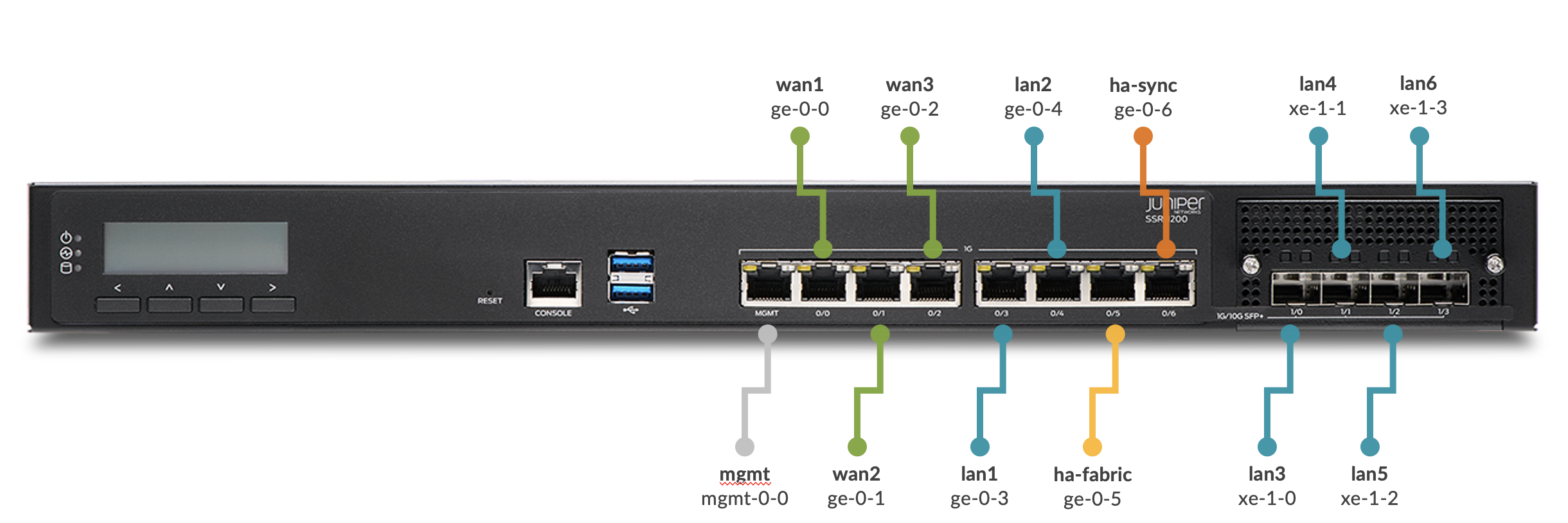
Port Mapping Info
| Name | Port | Description | PCI Address | Speed | Type |
|---|---|---|---|---|---|
| mgmt-0-0 | MGMT | Management interface | 0000:03:00.0 | 1000 | MGMT |
| ge-0-0 | Port 0/0 | WAN 1 network interface | 0000:03:00.1 | 1000 | WAN |
| ge-0-1 | Port 0/1 | WAN 2 network interface | 0000:03:00.2 | 1000 | WAN |
| ge-0-2 | Port 0/2 | WAN 3 network interface | 0000:03:00.3 | 1000 | WAN |
| ge-0-3 | Port 0/3 | LAN 1 network interface | 0000:01:00.0 | 1000 | LAN |
| ge-0-4 | Port 0/4 | LAN 2 network interface | 0000:01:00.1 | 1000 | LAN |
| ge-0-5 | Port 0/5 | HA Fabric network interface | 0000:01:00.2 | 1000 | HA Fabric |
| ge-0-6 | Port 0/6 | HA Sync network interface | 0000:01:00.3 | 1000 | HASync |
| xe-1-0 | Port 1/0 | LAN 3 network interface | 0000:07:00.3 | 10000 | LAN |
| xe-1-1 | Port 1/1 | LAN 4 network interface | 0000:07:00.2 | 10000 | LAN |
| xe-1-2 | Port 1/2 | LAN 5 network interface | 0000:07:00.1 | 10000 | LAN |
| xe-1-3 | Port 1/3 | LAN 6 network interface | 0000:07:00.0 | 10000 | LAN |
Your SSR device uses Port 0/0 (ge-0-0) as a default WAN port to contact Mist for zero-touch provisioning (ZTP). You will also be setting up Port 0/3 (ge-0-3) with a LAN network.
-
Connect port 0 to an Ethernet WAN link capable of providing the device with:
- DHCP address assignment
- Connectivity to the Internet and Mist
-
Connect port 3 to your LAN devices, including:
- Mist-managed Juniper EX switches
- Mist APs
- User devices
-
Power on the device.
-
Use the Mist Claim Code to associate the device with a Mist Organization.
SSR 1300
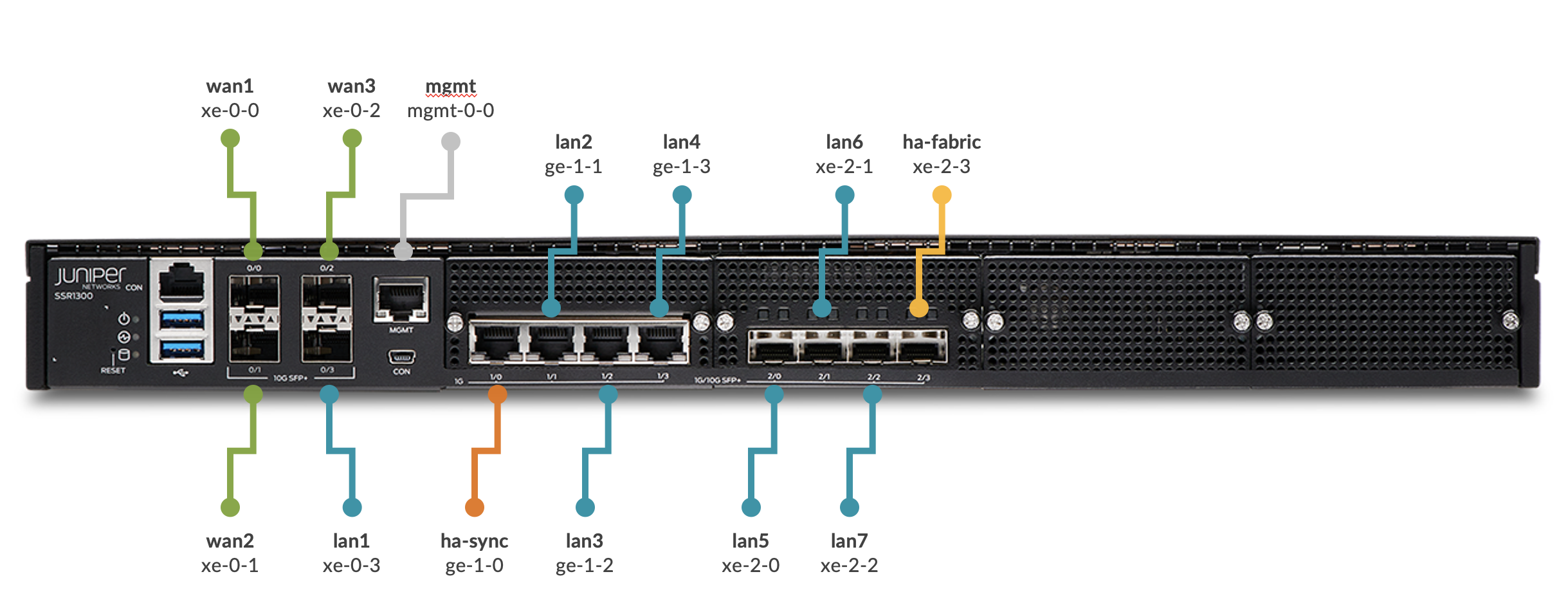
Port Mapping Info
| Name | Port | Description | PCI Address | Speed | Type |
|---|---|---|---|---|---|
| mgmt-0-0 | MGMT | Management interface | 0000:01:00.0 | 1000 | MGMT |
| xe-0-0 | Port 0/0 | WAN 1 network interface | 0000:6a:00.0 | 10000 | WAN |
| xe-0-1 | Port 0/1 | WAN 2 network interface | 0000:6a:00.1 | 10000 | WAN |
| xe-0-2 | Port 0/2 | WAN 3 network interface | 0000:6a:00.2 | 10000 | WAN |
| xe-0-3 | Port 0/3 | LAN 1 network interface | 0000:6a:00.3 | 10000 | LAN |
| ge-1-0 | Port 1/0 | HA Sync network interface | 0000:19:00.0 | 1000 | HASync |
| ge-1-1 | Port 1/1 | LAN 2 network interface | 0000:19:00.1 | 1000 | LAN |
| ge-1-2 | Port 1/2 | LAN 3 network interface | 0000:19:00.2 | 1000 | LAN |
| ge-1-3 | Port 1/3 | LAN 4 network interface | 0000:19:00.3 | 1000 | LAN |
| xe-2-0 | Port 2/0 | LAN 5 network interface | 0000:1b:00.3 | 10000 | LAN |
| xe-2-1 | Port 2/1 | LAN 6 network interface | 0000:1b:00.2 | 10000 | LAN |
| xe-2-2 | Port 2/2 | LAN 7 network interface | 0000:1b:00.1 | 10000 | LAN |
| xe-2-3 | Port 2/3 | HA Fabric network interface | 0000:1b:00.0 | 10000 | HAFabric |
Your SSR device uses Port 0/0 (xe-0-0 ) as a default WAN port to contact Mist for zero-touch provisioning (ZTP). You will also be setting up Port 0/3 (xe-0-3) with a LAN network.
-
Connect port 0 to an Ethernet WAN link capable of providing the device with:
- DHCP address assignment
- Connectivity to the Internet and Mist
-
Connect port 3 to your LAN devices, including:
- Mist-managed Juniper EX switches
- Mist APs
- User devices
-
Power on the device.
-
Use the Mist Claim Code to associate the device with a Mist Organization.
SSR 1400
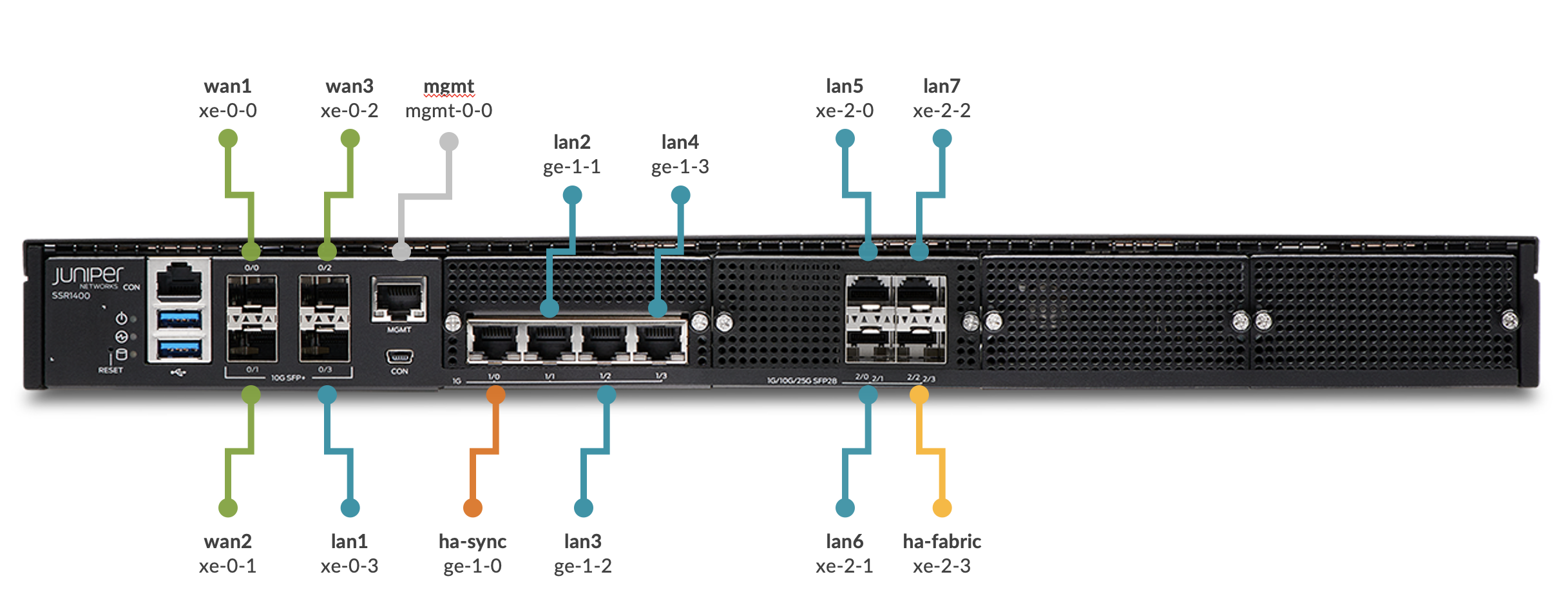
Port Mapping Info
| Name | Port | Description | PCI Address | Speed | Type |
|---|---|---|---|---|---|
| mgmt-0-0 | MGMT | Management interface | 0000:01:00.0 | 1000 | MGMT |
| xe-0-0 | Port 0/0 | WAN 1 network interface | 0000:6a:00.0 | 10000 | WAN |
| xe-0-1 | Port 0/1 | WAN 2 network interface | 0000:6a:00.1 | 10000 | WAN |
| xe-0-2 | Port 0/2 | WAN 3 network interface | 0000:6a:00.2 | 10000 | WAN |
| xe-0-3 | Port 0/3 | LAN 1 network interface | 0000:6a:00.3 | 10000 | LAN |
| ge-1-0 | Port 1/0 | HA Sync network interface | 0000:19:00.0 | 1000 | HASync |
| ge-1-1 | Port 1/1 | LAN 2 network interface | 0000:19:00.1 | 1000 | LAN |
| ge-1-2 | Port 1/2 | LAN 3 network interface | 0000:19:00.2 | 1000 | LAN |
| ge-1-3 | Port 1/3 | LAN 4 network interface | 0000:19:00.3 | 1000 | LAN |
| xe-2-0 | Port 2/0 | LAN 5 network interface | 0000:1b:00.0 | 1/10/25GB | LAN |
| xe-2-1 | Port 2/1 | LAN 6 network interface | 0000:1b:00.1 | 1/10/25GB | LAN |
| xe-2-2 | Port 2/2 | LAN 7 network interface | 0000:1b:00.2 | 1/10/25GB | LAN |
| xe-2-3 | Port 2/3 | HA Fabric network interface | 0000:1b:00.3 | 1/10/25GB | HAFabric |
Your SSR device uses Port 0/0 (xe-0-0 ) as a default WAN port to contact Mist for zero-touch provisioning (ZTP). You will also be setting up Port 0/3 (xe-0-3) with a LAN network.
-
Connect port 0 to an Ethernet WAN link capable of providing the device with:
- DHCP address assignment
- Connectivity to the Internet and Mist
-
Connect port 0/3 to your LAN devices, including:
- Mist-managed Juniper EX switches
- Mist APs
- User devices
-
Power on the device.
-
Use the Mist Claim Code to associate the device with a Mist Organization.
SSR 1500
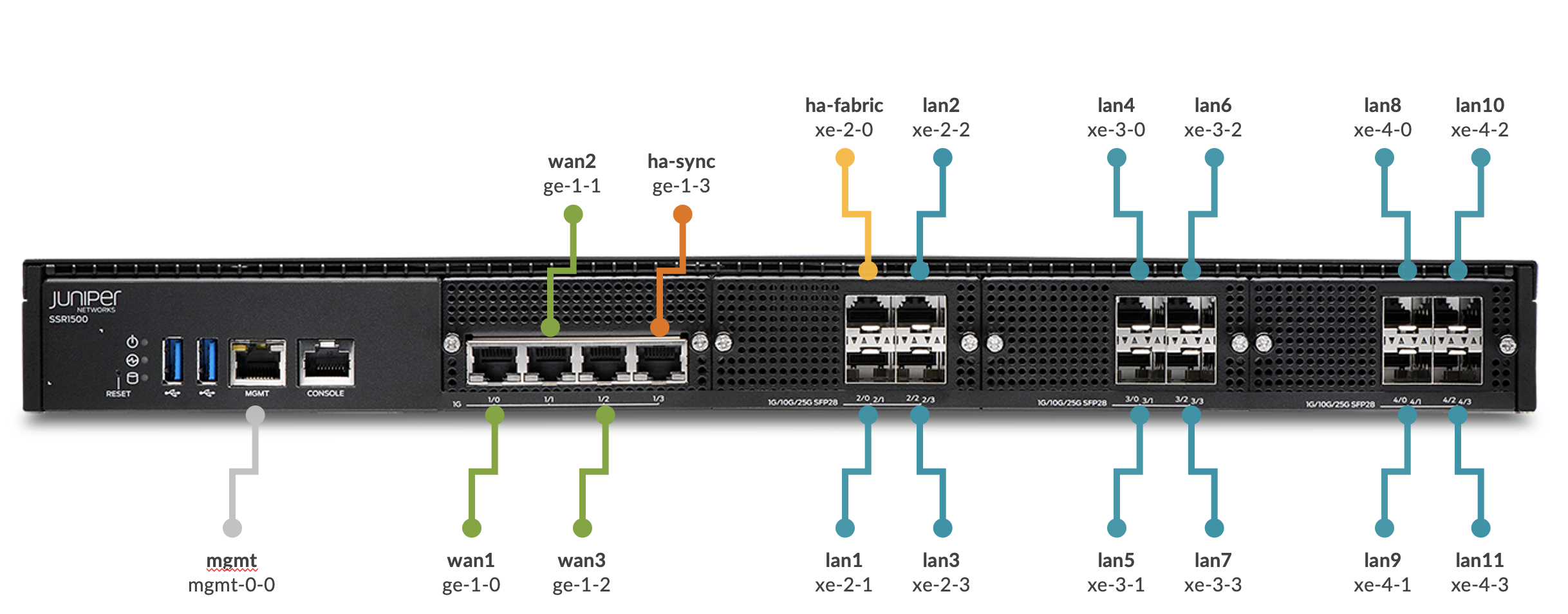
Port Mapping Info
| Name | Port | Description | PCI Address | Speed | Type |
|---|---|---|---|---|---|
| mgmt-0-0 | MGMT | Management interface | 0000:41:00.0 | 1000 | MGMT |
| ge-1-0 | Port 1/0 | WAN 1 network interface | 0000:44:00.0 | 1000 | WAN |
| ge-1-1 | Port 1/1 | WAN 2 network interface | 0000:44:00.1 | 1000 | WAN |
| ge-1-2 | Port 1/2 | WAN 3 network interface | 0000:44:00.2 | 1000 | WAN |
| ge-1-3 | Port 1/3 | HA Sync network interface | 0000:44:00.3 | 1000 | HASync |
| xe-2-0 | Port 2/0 | HA Fabric network interface | 0000:42:00.0 | 1/10/25GB | HAFabric |
| xe-2-1 | Port 2/1 | LAN 1 network interface | 0000:42:00.1 | 1/10/25GB | LAN |
| xe-2-2 | Port 2/2 | LAN 2 network interface | 0000:42:00.2 | 1/10/25GB | LAN |
| xe-2-3 | Port 2/3 | LAN 3 network interface | 0000:42:00.3 | 1/10/25GB | LAN |
| xe-3-0 | Port 3/0 | LAN 4 network interface | 0000:81:00.0 | 1/10/25GB | LAN |
| xe-3-1 | Port 3/1 | LAN 5 network interface | 0000:81:00.1 | 1/10/25GB | LAN |
| xe-3-2 | Port 3/2 | LAN 6 network interface | 0000:81:00.2 | 1/10/25GB | LAN |
| xe-3-3 | Port 3/3 | LAN 7 network interface | 0000:81:00.3 | 1/10/25GB | LAN |
| xe-4-0 | Port 4/0 | LAN 8 network interface | 0000:c1:00.0 | 1/10/25GB | LAN |
| xe-4-1 | Port 4/1 | LAN 9 network interface | 0000:c1:00.1 | 1/10/25GB | LAN |
| xe-4-2 | Port 4/2 | LAN 10 network interface | 0000:c1:00.2 | 1/10/25GB | LAN |
| xe-4-3 | Port 4/3 | LAN 11 network interface | 0000:c1:00.3 | 1/10/25GB | LAN |
Your SSR device uses Port 1/0 (ge-1-0 ) as a default WAN port to contact Mist for zero-touch provisioning (ZTP). You will also be setting up Port 2/1 (xe-2-1) with a LAN network.
-
Connect port 0 to an Ethernet WAN link capable of providing the device with:
- DHCP address assignment
- Connectivity to the Internet and Mist
-
Connect port 2/1 to your LAN devices, including:
- Mist-managed Juniper EX switches
- Mist APs
- User devices
-
Power on the device.
-
Use the Mist Claim Code to associate the device with a Mist Organization.